Most people assume a missing Airbnb remote means the fastest fix is downloading an app. I used to think that too. The numbers say otherwise: an app adds at least two dependencies, while messaging the host adds only one. Before I spend ten minutes making my phone impersonate a piece of plastic, I ask the person who knows whether that plastic is in a drawer, on a side table, or taped under the TV stand.
Start With the Lowest-Friction Options
My first move is a short host message. Hosts deal with missing remotes constantly, and they often know both the hiding place and any odd trick required by that particular TV. If the remote has genuinely disappeared, replacing it or providing another solution is their problem to sort out. That makes contacting them the most efficient starting point, even if it feels almost too obvious.
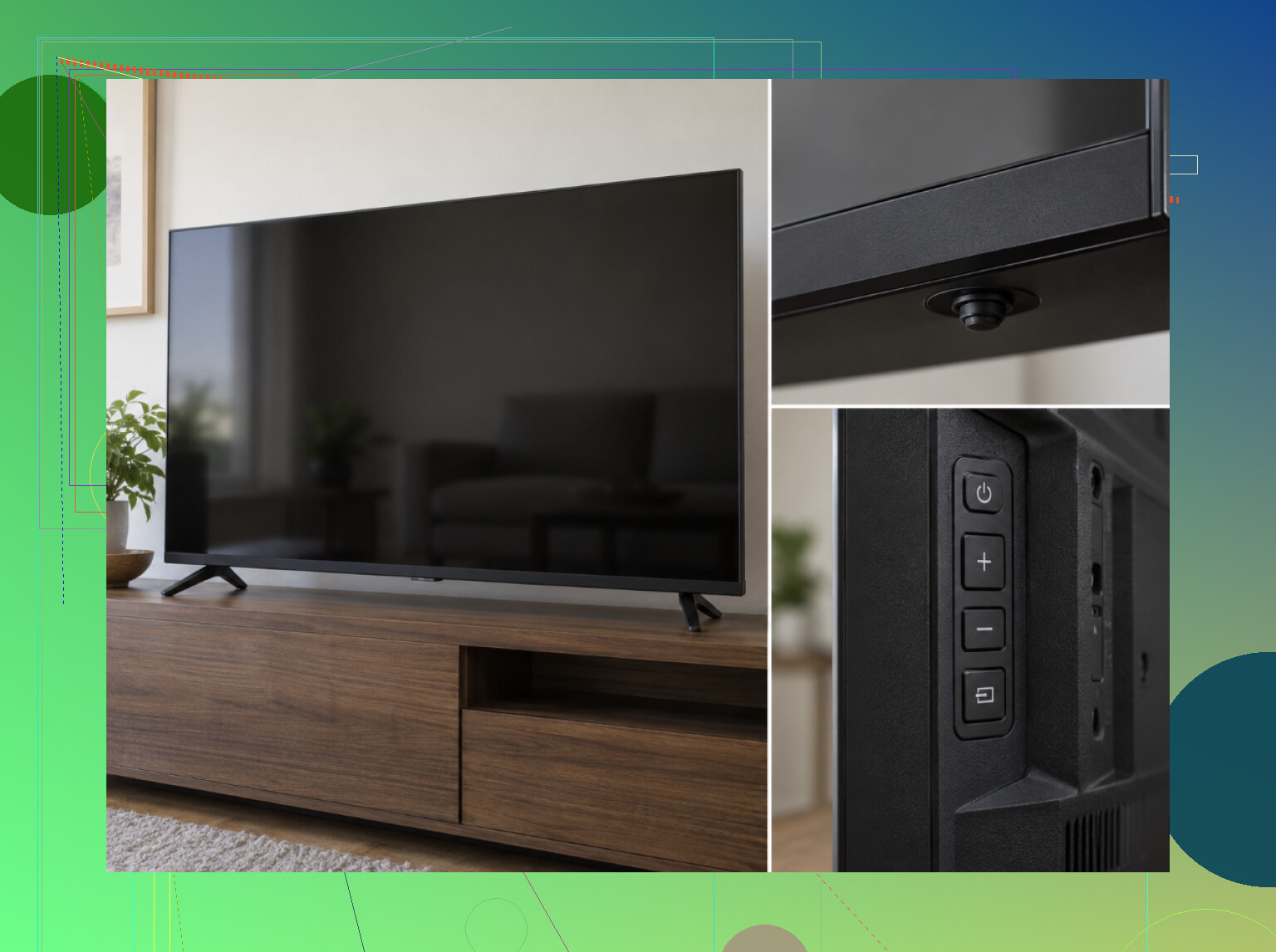
While I wait, I inspect the TV itself. Every television has physical controls somewhere, usually a small joystick or button cluster along the bottom edge, on the back, or behind the logo. Those controls are basic, but basic is useful. They should let me turn the set on, adjust the volume, and switch inputs.
If I cannot find the controls, I look for the model-number sticker on the back. Searching that model can clarify where the manufacturer hid the buttons. Apparently placing a power button where a normal human would expect it was not always part of the design brief.
This physical-button route matters because it has almost no technical failure points. The TV needs power, and I need to locate the controls. By comparison, a phone remote may require the correct app, the correct device type, the same Wi-Fi network, and permission for devices to communicate. That is quite a stack of conditions just to lower the volume.
Treat Phone Control as a Network Test
I think of phone control as having two main requirements. First, my phone and the smart TV need to be on the same network, which will usually mean the Airbnb guest Wi-Fi. Second, that network must allow connected devices to see one another.
The second requirement is the one people miss. Some Airbnb networks are configured more like hotel Wi-Fi, with device isolation or other restrictions. My phone can have internet access, and the TV can have internet access, yet neither can detect the other. In that situation, repeatedly reinstalling remote apps is mostly an exercise in watching progress bars.
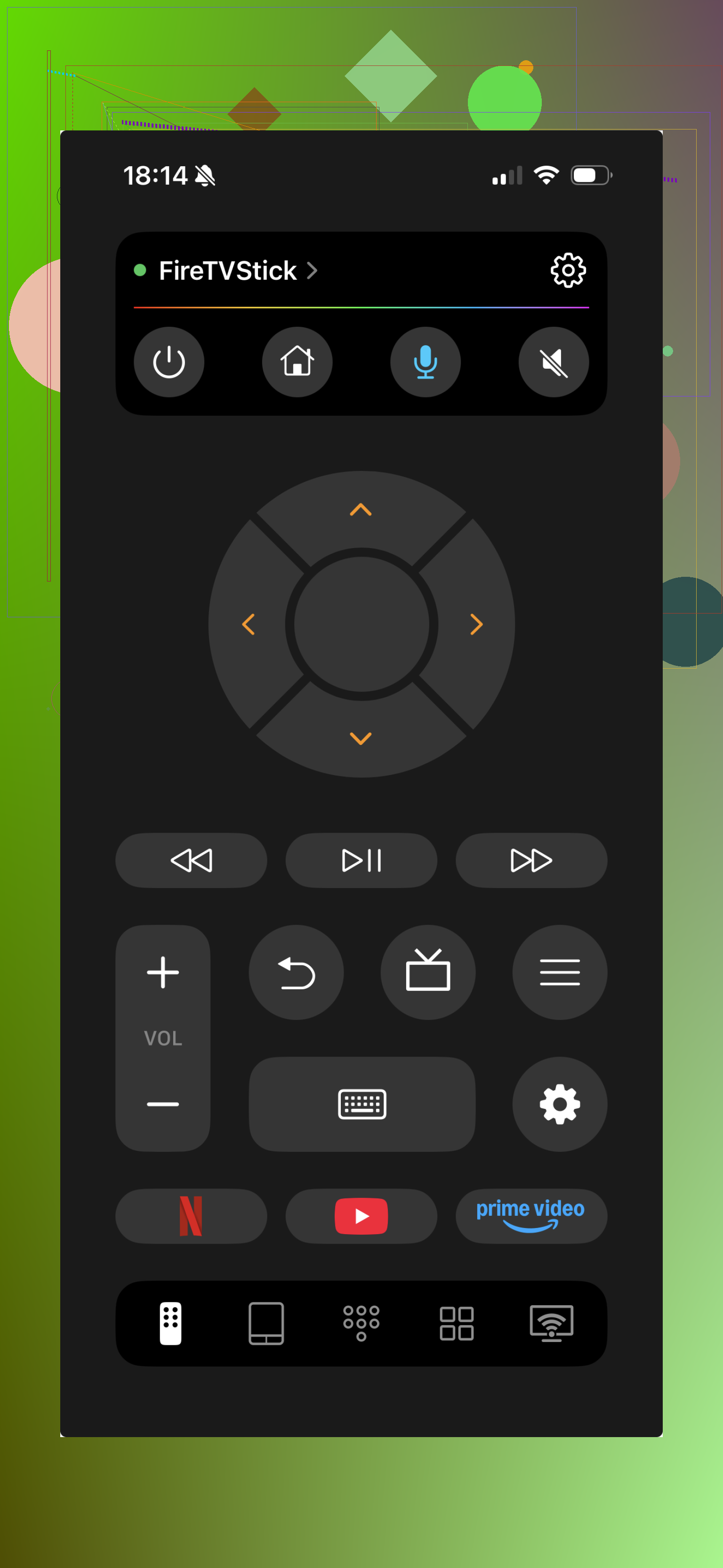
A universal remote app is still worth testing because one installation can cover several likely systems. TVRem supports Samsung, LG, Roku, Fire TV, Android/Google TV, and Apple TV, so it gives me one chance across most of the equipment I would expect to find in a rental. If the network is isolated, no remote app will connect, which is a network limitation rather than an app failure, but the broad device coverage makes TVRem remote a sensible test.
I also check whether I actually need to control the television or a streaming stick plugged into it. Many rentals use Roku or Fire TV hardware for Netflix and YouTube. If that stick’s remote is missing, the Roku app, Fire TV app, or TVRem may control the stick directly. Numerically, that removes one unnecessary layer: I can ignore most TV functions and operate the device providing the content.
Avoid Leaving a Digital Souvenir
Once the screen is working, account security becomes the less visible problem. If I sign into Netflix, YouTube, or another service on the Airbnb television, I make signing out part of checkout. Otherwise, the next guest may inherit access to my profile, viewing history, and account controls.
When available, I prefer the option that displays a code on the television and lets me complete sign-in on my phone. That keeps me from typing my password into someone else’s device. It does not eliminate the need to sign out, but it reduces how much sensitive information I enter using unfamiliar hardware.
For future trips, carrying my own Fire TV Stick or Chromecast is the predictable option. I can plug it into a spare HDMI port, control it from my phone, and use my own accounts. It will not solve every Wi-Fi configuration issue, but it avoids relying on a rental’s missing remote or unfamiliar streaming setup.
My practical test order is simple: message the host, find the physical controls, identify any streaming stick, and only then test phone control on the guest Wi-Fi. Before leaving, I sign out of every account. On the next stay, try those steps in that order and note exactly where the process fails. That will tell you whether the real culprit is the remote, the television, the streaming device, or the network.