I misplaced my TCL TV remote and can’t turn the TV on or change inputs the way I normally do. I’m hoping there’s a workaround, like using the buttons on the TV, a phone app, or something else so I don’t have to buy a new remote right away. What are my options to control a TCL TV without the original remote?
Lost my TCL remote once and found out the hard way how annoying it is to be stuck on the wrong HDMI port. Here is what I tried, what worked, and where it broke down for me.
- Using the button on the TV itself
First thing I did was get up and feel around the TV frame like an idiot.
On every TCL set I have seen, there is at least one small control button:
- Under the middle of the screen, usually tucked in under the bezel
- On the back, toward the bottom
- Near the power cord area
Sometimes it is one tiny multi‑direction button, sometimes a small cluster.
What I managed to do with it:
- Turn the TV on and off
- Open the input list and move through it
- Do basic menu navigation if I was patient enough
What did not work well:
- Typing Wi‑Fi passwords
- Moving around streaming apps with any decent speed
So this works if you only need to switch HDMI or power on to something that autoplays. It is not a long term solution unless you enjoy suffering.
- Wi‑Fi remote app: TVRem
I gave up on the physical button pretty fast and tried phone remote apps next.
This one was the most usable for me:
TVRem Universal TV Remote on iOS:
https://apps.apple.com/us/app/tvrem-universal-tv-remote-app/id6746162794
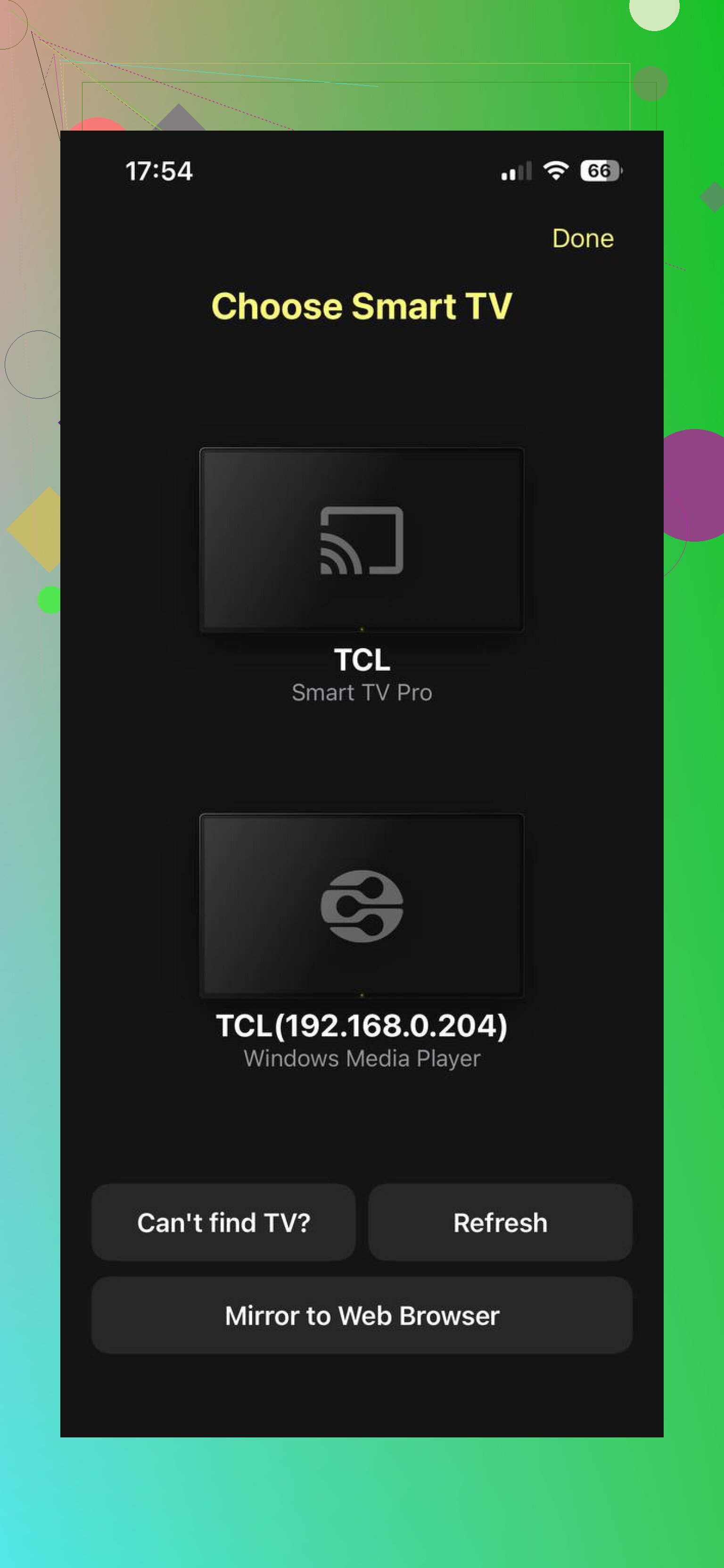
What it worked with in my testing:
- TCL Roku TV
- TCL Google TV / Android TV
- A random older Samsung smart TV in another room
- A Fire TV stick on a non‑TCL screen
They say it supports Samsung, Sony, Roku TV, Android TV, Google TV, Fire TV and others, and from what I tried, that claim did not seem exaggerated.
What I got from TVRem:
- Full remote controls over Wi‑Fi, no dongle or adapter
- Trackpad‑style control, which felt less clunky than arrow keys for some apps
- On‑screen keyboard input, which made logging in to Netflix and typing Wi‑Fi passwords less painful
- Voice input for searches when I did not want to type
- Worked on my iPhone and my old Android tablet without extra setup costs
They also have a demo video here if you want to see the interface before installing:

What made it usable for daily use for me was not that it mimicked the physical remote. The extra keyboard and touch control made it faster than the stock remote for text entry and navigation.
How I connected TVRem
- I put the TV on my home Wi‑Fi, not guest, not hotspot.
- I connected my phone to the exact same Wi‑Fi network as the TV.
- I turned off VPN on the phone, otherwise the app did not see the TV.
- I disabled mobile data so the phone stopped trying to route traffic through LTE.
- I opened TVRem and let it scan the network.
- I tapped my TCL TV when it showed up in the list.
- The TV asked for permission once. I hit OK on the screen using the TV’s own button the first time.
First pairing took under a minute.
After that, TVRem remembered my TV. Later launches skipped the scanning and connected almost instantly as long as Wi‑Fi and the TV were on the same network.
Once connected, I controlled:
- Volume and mute
- Inputs
- Apps like YouTube, Netflix, Prime Video
- Navigation in menus and settings
Relevant topics
- Official TCL companion apps
There are also official apps tied to the platform your TV runs on. These worked fine, but I ended up using them less than TVRem.
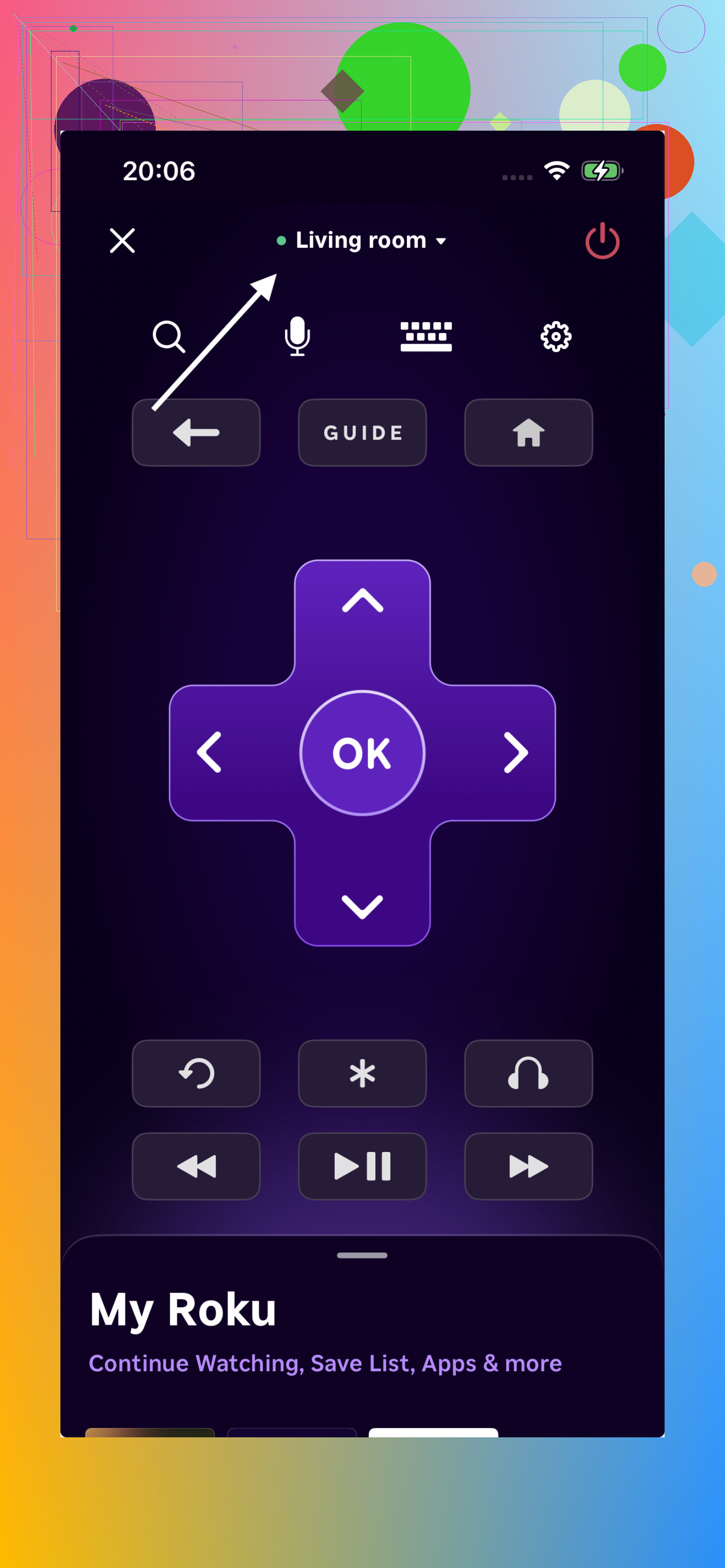
For TCL Roku TV
Use the Roku mobile app.
What I did:
- Installed the Roku app on my phone.
- Connected the phone to the same Wi‑Fi network as the TV.
- Opened the app, and it auto‑detected the TV.
- Paired it when the TV asked for confirmation.
Pros I noticed:
- Reliable for basic control on Roku TVs
- Direct access to Roku features and channels
Cons:
- UI felt slower on my older phone compared with TVRem
- Less flexible keyboard and navigation in some screens
For TCL Google TV / Android TV
Use the Google TV app.
Steps were similar:
- Installed Google TV app.
- Connected phone to same Wi‑Fi.
- Opened the app, hit the remote icon, picked the TV.
- Entered the pairing code shown on the TV.
Pros:
- Integrated with my Google account
- Good enough for simple use
Cons:
- Input lag felt worse sometimes
- I missed the nicer touchpad style from TVRem
These official apps do their job. If you prefer everything “official”, they are fine. For me, TVRem felt faster and more comfortable for long sessions and logging into apps.
- Older TCL TVs without smart features
I also helped a neighbor with a non‑smart TCL that only had HDMI and basic menus, no network.
On that type of TV:
- Wi‑Fi remote apps did nothing, because there is no network stack to talk to.
- TVRem and similar apps did not see the TV at all.
We ended up using:
- A cheap universal physical remote from a local store.
- An old Android phone with an IR blaster and a generic IR remote app.
Notes from that small adventure:
- Many recent phones, especially iPhones, do not have IR transmitters at all.
- The universal remote needed us to input or search for a TCL code group, then test power and volume until it matched.
- Once configured, it worked like a basic stock remote, no smart features obviously.
If your TV does not support Wi‑Fi or Ethernet and is not a smart model, there is no software workaround. You need IR hardware, either a handheld universal remote or a phone with IR.
- Why I kept TVRem installed
There is also a webpage for TVRem on desktop here if you want more info:
I ended up keeping TVRem on my phone as a permanent backup, even after I found the original remote under the couch.
Main reasons:
- One app handled multiple TVs and streaming boxes in my place.
- Having a real keyboard on the phone was faster than any on‑screen TV keyboard.
- The touchpad style control helped with apps that feel clumsy with four‑way arrows.
- Setup was under a few minutes per device once I knew the Wi‑Fi steps.
- This is free.
If your TCL TV supports Wi‑Fi control and your phone is on the same network without VPN or weird routing, you end up with full control in a short time.
What I would try in order if I lost my TCL remote again:
- Use the TV’s physical button to get Wi‑Fi configured and streaming apps reachable.
- Install TVRem and pair it over Wi‑Fi.
- If it is a Roku or Google TV model and you prefer official tools, install the Roku or Google TV app instead or alongside.
- If the TV is not smart and has no network, buy a universal IR remote or use a phone with IR if you have one.
If your TCL is a smart TV, you have a few more angles than what @mikeappsreviewer covered, so you might not need a new remote yet.
-
Check for an IR-only workaround
Some TCL smart sets still respond to any “Roku TV” or “TCL Roku” style IR code. If you have:
• A cable or satellite remote lying around
• A universal remote from another TV
Try programming it for “TCL” or “Roku TV”.
Power and Input usually work even if other keys are weird. This is faster than hunting for the TV’s tiny button every time. -
Use HDMI-CEC as a pseudo remote
If you have:
• A game console (PS4, PS5, Xbox One or Series)
• An Apple TV
• A Fire TV or Roku stick
Connect it to HDMI 1 and turn on HDMI-CEC on that device.
What you get:
• Turning on the console wakes the TV and switches to that HDMI automatically.
• The console remote or controller often controls TV volume and power.
If CEC is off in the TV settings, you might need the TV button once to enable it, but after that your streaming box remote handles most daily stuff. -
Use Ethernet instead of Wi Fi, if possible
Small disagreement with focusing on Wi Fi only. If your TCL has an Ethernet jack and your router is nearby:
• Plug TV to router with a cable.
• Install official Roku / Google TV app or TVRem on your phone.
Your phone stays on Wi Fi, the TV sits on wired; they still talk fine as long as both are on the same network. This avoids weird Wi Fi issues and guest network blocks. -
Use WPS if you lost the remote before setting Wi Fi
If the TV supports WPS and your router has a WPS button:
• On the TV, use the physical button to reach Network settings.
• Pick WPS.
• Hit WPS on the router.
This skips typing passwords with the awkward TV button and gets you to the point where apps like TVRem or the official ones work. -
For non smart or old TCL
If there is no network option in the menus, app control will not work, so focus on:
• Cheap universal IR remote. Look for “works with TCL” on the packaging.
• If you own an older Android phone with an IR blaster, try a generic IR remote app and pick TCL TV codes.
This gives you power, inputs and volume without any network setup. -
Minimal “do this now” plan
• Step 1: Find and use the TV’s onboard button to turn it on and see if it is a smart model with network options.
• Step 2: If smart and Wi Fi ready, get it on the same network as your phone, then use either TVRem or the official Roku / Google TV app.
• Step 3: If it has Ethernet, plug it in there instead of fighting Wi Fi.
• Step 4: If it has no network at all, stop fighting software and buy a basic universal IR remote.
This way you avoid being stuck on the wrong HDMI or stuck mashing that single button forever.
If you’re trying to avoid buying a new remote right now, here are some extra angles that build on what @mikeappsreviewer and @caminantenocturno already covered, without rehashing all the same steps.
1. Double‑check what kind of TCL you actually have
Before going crazy with apps:
- Look at the boot logo when it powers on:
- “Roku TV” → TCL Roku
- “Google TV” or “Android TV” → TCL Google/Android
- Just “TCL” with a very basic menu → probably non‑smart or older smart
This matters, because if it’s a dumb-ish model, app control is basically a fantasy.
2. Try a cable/satellite remote you already own
Slight disagreement with leaning straight into phone apps: if you have any of these around, test them first:
- Cable box remote
- Dish / satellite remote
- An old universal remote from another TV
Program it for TCL or Roku TV codes. Often:
- Power works
- Volume works
- Input sometimes works
It’s ugly but takes 2 minutes and might solve your “stuck on wrong HDMI” problem without touching Wi‑Fi or apps.
3. Use a streaming box or console as your “remote”
If you can at least get the TV on and onto some HDMI (using the TV’s button):
- Plug in:
- Apple TV
- Fire TV / Roku stick
- PS4 / PS5 / Xbox One / Series X|S
Turn on HDMI‑CEC on the device.
What you get in practice:
- Turning on the box turns on the TV
- TV auto switches to that HDMI
- That device’s remote or controller can often control TV volume and power
This is not perfect, but for 90% of everyday use, you basically stop caring about the TV’s own remote.
4. Wired network if Wi‑Fi is a pain
@caminantenocturno mentioned Wi‑Fi a lot. I’ll be a bit contrarian: if your router is near the TV and your TCL has an Ethernet port:
- Plug TV directly to router
- Put your phone on Wi‑Fi on the same router
- Then use TVRem or the official Roku / Google TV app
Wired completely avoids:
- Weak Wi‑Fi signal
- Guest network isolation
- Router doing “smart” but annoying things
People skip Ethernet and then fight Wi‑Fi for an hour trying to get a phone remote working.
5. If you never connected the TV to network before
This is the annoying scenario: you lost the remote before setting up Wi‑Fi.
- You’ll likely have to suffer through the on‑TV button navigation once
- Use that to:
- Get into Network settings
- Connect to Wi‑Fi or Ethernet
- Only then can app‑based remotes actually see the TV
If your router has WPS and the TV supports it, use that path to avoid typing passwords with one tiny button.
6. Absolute worst‑case: it’s non‑smart or ancient
If:
- There is no Wi‑Fi option
- No Ethernet
- No “Network” menu at all
Then all the apps, TVRem, Roku app, Google TV app, etc. are useless. At that point your only realistic options are:
- Buy a dirt‑cheap universal IR remote that lists “TCL”
- Or use an old Android phone with an IR blaster and a generic IR remote app
If you’re in this bucket, I wouldn’t overthink it. A $10 physical remote beats wrestling with the TV’s single button like some cursed minigame.
7. Minimal action plan
- Turn on TV using its physical button and confirm if it’s smart and has network options.
- If smart:
- Connect it to network (Wi‑Fi or Ethernet).
- Then pick an app: TVRem, Roku app, or Google TV app.
- If not smart:
- Don’t waste time on phone apps. Grab a cheap universal IR remote.
- If you have a console/streaming box, enable HDMI‑CEC and let that remote basically “be” your TV remote.
You probably can avoid buying the exact original TCL remote, but in some cases you’ll still need some kind of IR remote in the mix.
Short version: you almost certainly do not have to buy the original TCL remote, but you may still want some cheap IR remote as backup.
A few angles that were not really stressed by @caminantenocturno, @kakeru or @mikeappsreviewer:
1. Check if “hotel / child lock” is blocking you
Sometimes the front‑panel button is crippled:
- Look in the on‑screen settings (using that tiny button) for things like “Keypad lock” or “Hotel mode.”
- If enabled, you might only get Power and not Inputs or Menu.
- Turn those off and suddenly the built‑in button becomes much more usable.
People assume the TV has no controls when it is actually just locked down.
2. Use ARC instead of only CEC
They all covered HDMI‑CEC in general, but there is a slightly different trick if your soundbar or receiver has HDMI ARC:
- Plug the TV’s ARC port to the soundbar / receiver’s ARC port.
- On many TCL models, turning the soundbar on via its own remote powers the TV and selects the right HDMI automatically.
- You then use the soundbar remote for volume and often for power.
That can give you “good enough” control if you mostly watch through a single HDMI source.
3. Why a dirt‑cheap universal beats hunting for the original
Here I slightly disagree with the vibe that apps + Wi Fi are the endgame. Wi Fi remotes are great until:
- The TV reboots and Wi Fi is forgotten.
- Your router changes SSID or password.
- The TV’s “network control in standby” is off, so you cannot turn it on via app.
In those cases, one $8 universal IR remote is worth more than an hour of swearing at network settings. As long as it supports TCL or Roku TV codes, you get:
Pros of a basic universal IR remote
- Works even when the TV is not on the network
- No need to share Wi Fi with guests just so they can pause a movie
- Zero app permissions, no VPN conflicts, no phone battery drama
- Often controls your cable box or soundbar too
Cons
- No on‑phone keyboard for password entry
- You still have to point it at the TV like it is 2005
- Some cheap ones feel flimsy and have awkward layouts
I would personally run both: a universal remote for “it always works” and a Wi Fi app like TVRem Universal TV Remote for comfort typing and smoother navigation.
4. When a phone remote app is actually worth the effort
I would only bother with Wi Fi remote apps if:
- Your TCL is clearly a smart model (Roku TV or Google/Android TV).
- You already had it on your network at least once.
- You care about logging into a bunch of apps or searching a lot.
In that case, something in the “universal Wi Fi remote” category like TVRem is handy because:
Pros for TVRem Universal TV Remote style apps
- One app can talk to several brands in your house
- On‑screen keyboard and sometimes voice search
- Trackpad control feels smoother than arrow keys for many menus
- Often free at the basic level
Cons
- Require phone and TV on same LAN with no VPN weirdness
- Can fail silently when your router isolates devices
- Cannot help you if the TV lost its network config
Compared with the official Roku / Google TV apps that the others mentioned, the generic universal approach is nice if you have a mix of devices instead of all‑Roku or all‑Google.
5. Reality check by TV type
To tie it together:
- Non‑smart / very old TCL
- Forget Wi Fi apps. You need IR: universal remote or a phone with an IR blaster.
- Smart TCL, never put on network
- Use panel button once to get it on Wi Fi or Ethernet, then a Wi Fi remote app becomes viable.
- Smart TCL already on network
- Go straight to TVRem or the official platform app, and keep a cheap IR remote as backup for when the network glitches.
Between the physical button, a basic universal remote and one Wi Fi app, you should be able to power on, change inputs and use apps without tracking down the exact OEM TCL remote.
Covered: IR codes, HDMI CEC via consoles, Ethernet, WPS, TVRem and official apps, ARC tricks, keypad lock, and a cheap universal. Here’s a simpler path: plug a USB keyboard or a wireless keyboard dongle into the TV USB port. Works on TCL Google TV or Android TV. Arrows and Enter navigate. Esc goes Back. Plug a USB mouse if you prefer clicking. Use teh panel button once to power on, then keyboard handles inputs and apps. A $12 Logitech K120 or similar usually works. No pairing. No Wi Fi issues.