My Roku remote suddenly stopped working and I can’t find a replacement right now. I’ve heard it’s possible to control Roku using an iPhone, but I’m not sure how to set this up. Has anyone done this before or know the steps? Any advice or tips would be great—need to get the TV working ASAP.
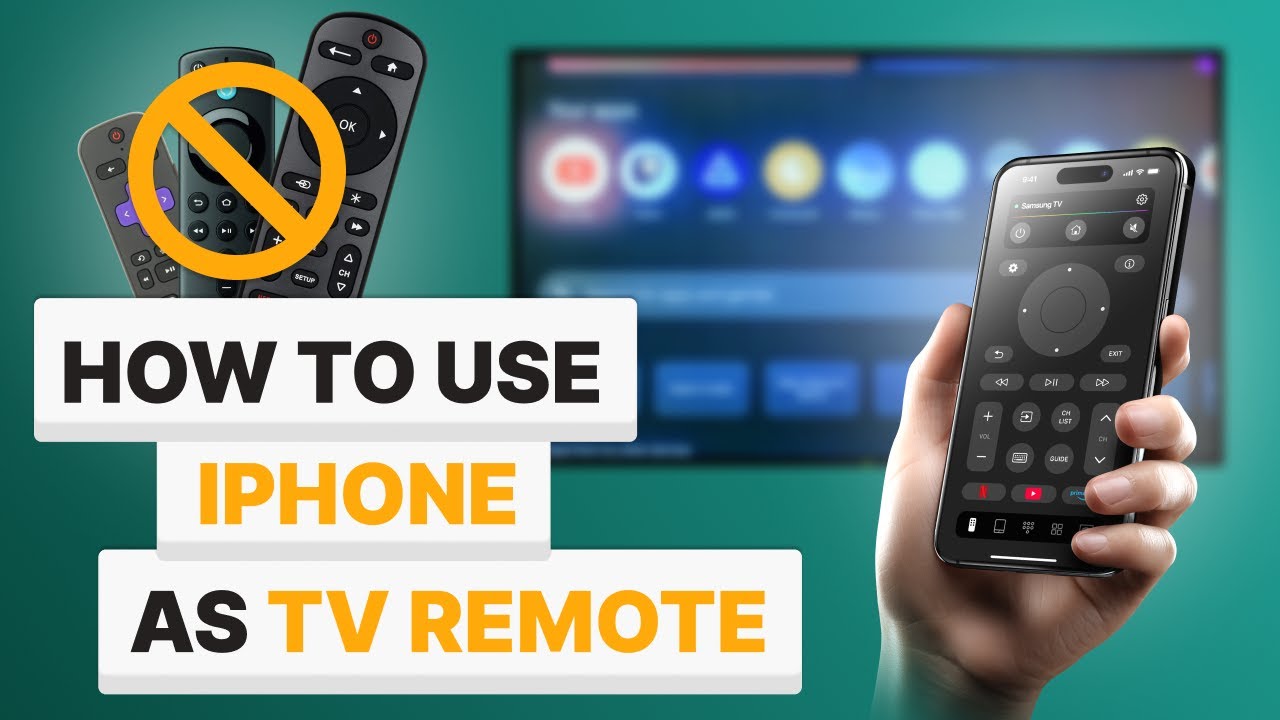
Yes — you can definitely use your iPhone as a Roku remote and TVRem makes the setup super simple. It turns your iPhone or iPad into a smart, wireless Roku controller — no batteries, no stress.
Option 1: TVRem Universal Remote App
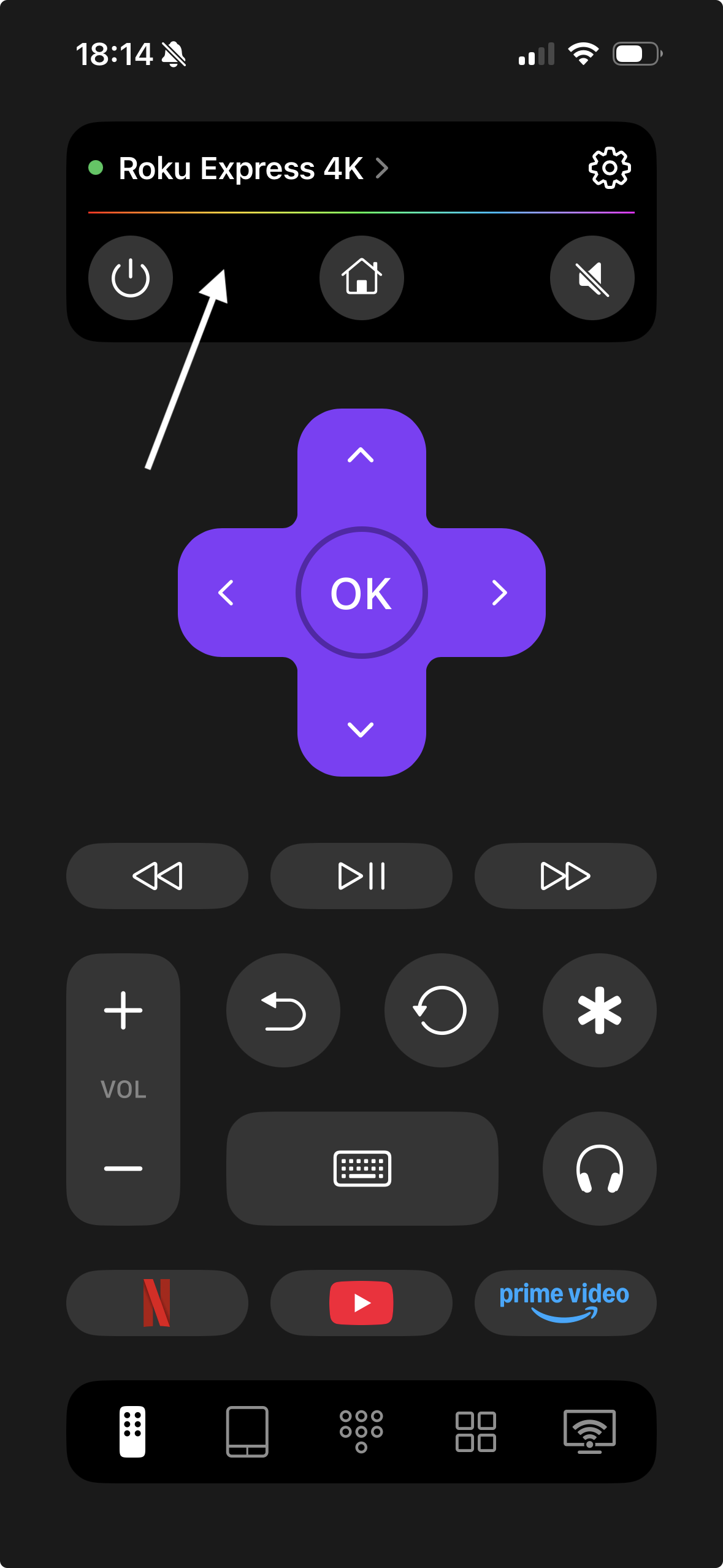
Here’s how to get started:
- Download TVRem from the App Store.
- Make sure your iPhone and Roku are connected to the same Wi-Fi network.
- Open TVRem — your Roku should automatically appear in the list of available devices.
- Tap it once to connect.
- If you see a prompt on your Roku, go to Settings → System → Advanced system settings → Control by mobile apps → Network Access, then choose Enabled or Permissive.
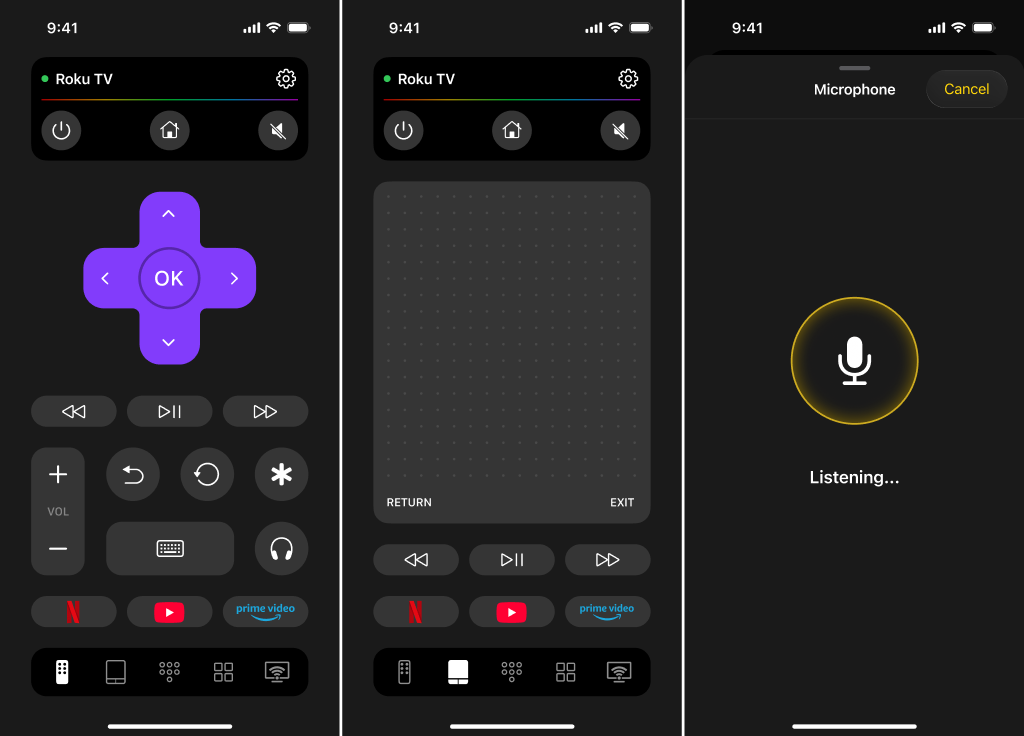
Once connected, you can do everything right from your phone:
- Navigate menus with smooth touchpad gestures (swipe to move, tap to select)
- Control volume and playback
- Quickly search titles using your iPhone keyboard instead of the on-screen one
- Launch Netflix, YouTube, or other Roku apps with a single tap

If you’re looking for a reliable and easy way to use your iPhone as a Roku remote, TVRem is hands-down one of the best options — fast connection, clean interface, and it just works.
Option 2: The Roku App
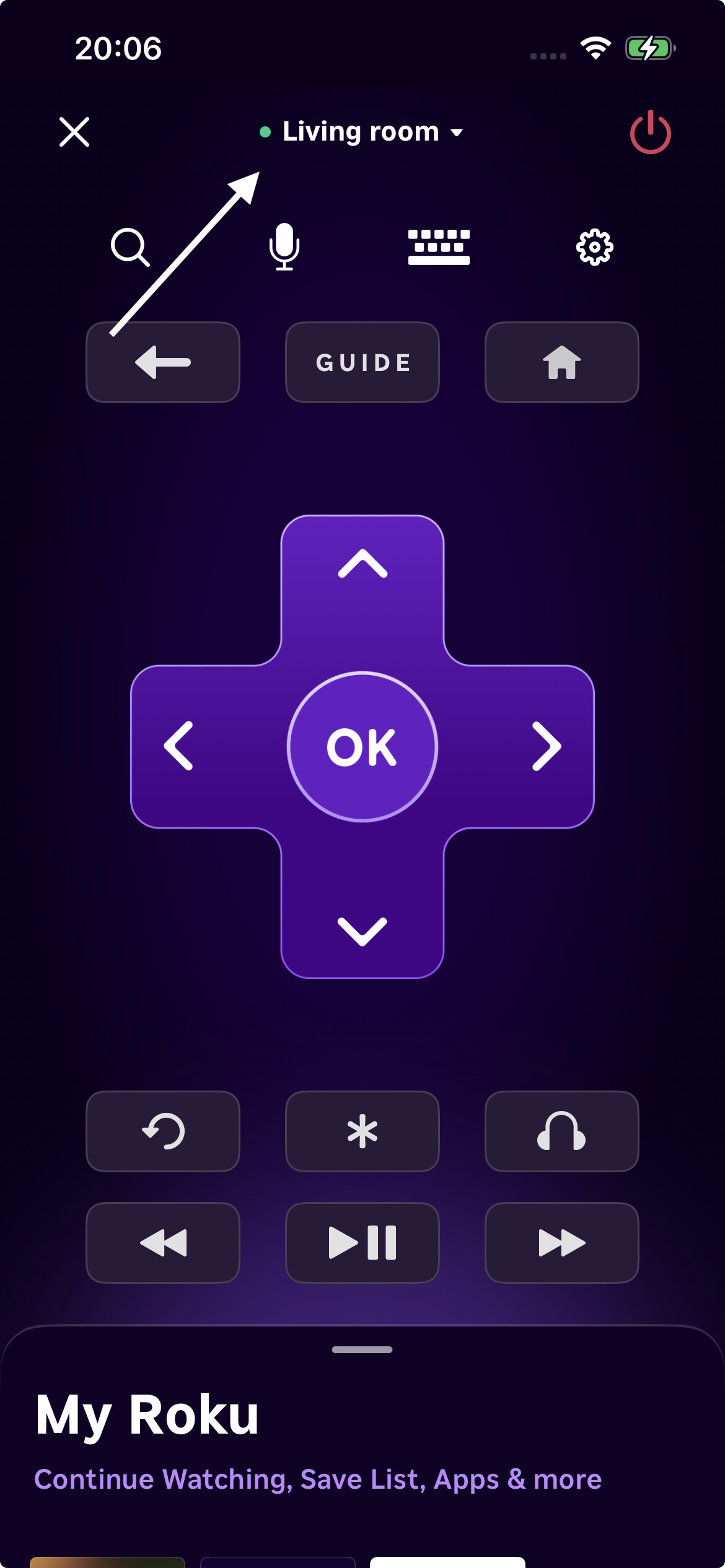
Sometimes the best answer is the one right under your nose—Roku’s very own app. Not even joking, I downloaded it during a commercial break, and it instantly found my Roku TV. A couple of taps later, and bam—my phone is now the command center of my living room.
What’s Actually Cool About It?
- Literally every button from the real remote is there.
- Plus you get a D-pad, quick launch for apps, even a (way better) keyboard for those painful searches.
- They jammed in voice search, private listening (plug your headphones into your phone and the TV is silent for everyone else), and a bunch more.
- Did I mention it works over Wi-Fi, so no awkward aiming or weird lag?
Here’s How to Get Set Up (TL;DR Version):
- Grab it from the App Store (just search “Roku”).
- Make sure both your phone and Roku are on the same Wi-Fi (otherwise, zero magic happens).
- On your Roku: Dive into Settings > System > Advanced > Control by mobile apps, and switch it on.
- Open the app, hit “Remote” at the bottom. It should find your Roku right away.
- Tap your device. You’re in. Cue power trip.
Option 3: TV Remote – Universal (Because You Have More Than One Device)
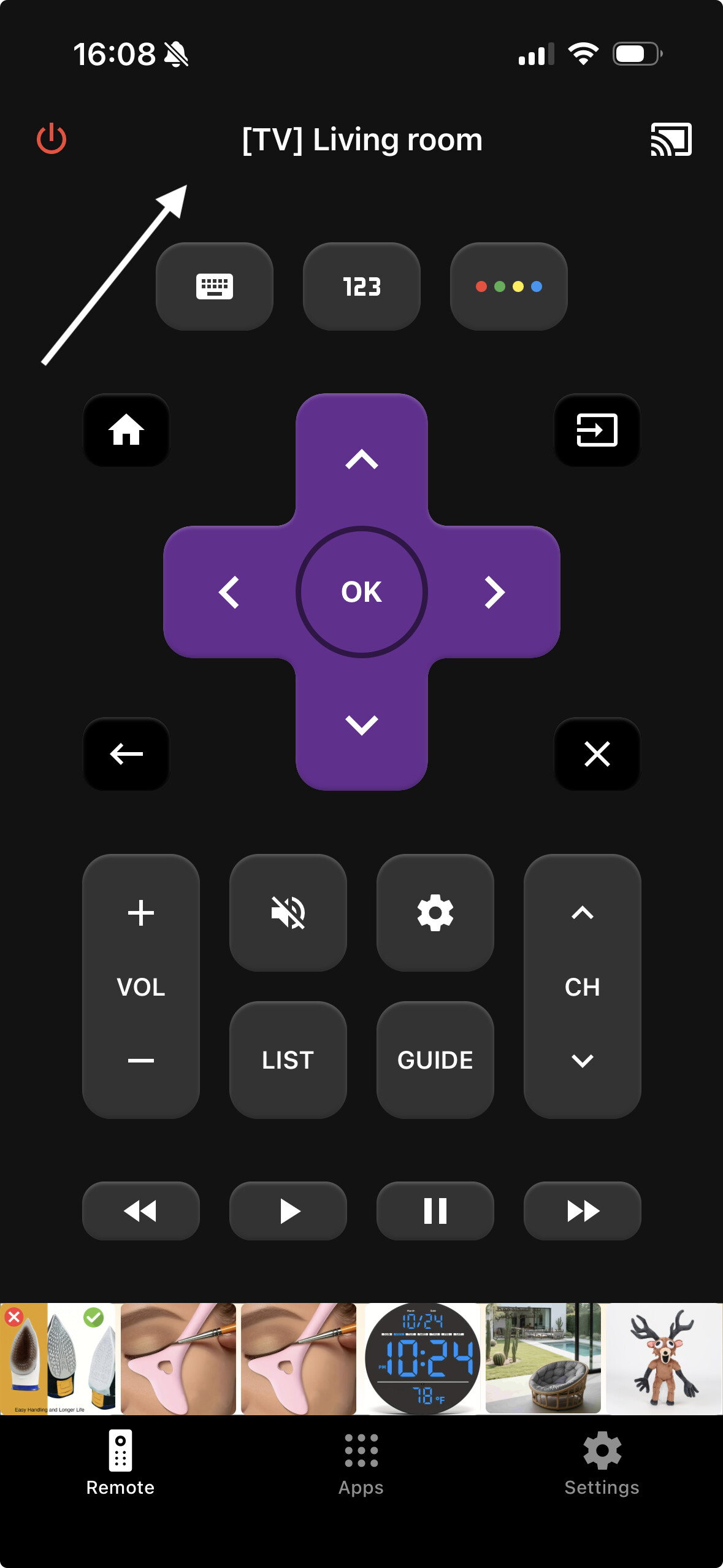
Let’s be real: Some of us have a Frankenstein’s monster of a media setup. If you’re wrestling not just with Roku, but also LG, Samsung, Fire TV, or basically anything else, this one’s for you.
Here’s the Score:
- It pulls off the “universal remote” thing—layout looks like the real deal.
- Works for Roku, but throws in support for plenty of other brands.
- Features an on-screen keyboard and enough buttons to feel familiar.
How to Use:
- Download “TV Remote – Universal” from the App Store.
- Ensure you’re on the same network as your devices.
- Launch the app, look for your Roku.
- Tap to connect, dismiss whatever demo pops up.
- The interface works like a legit remote—browse, type, adjust volume, power, whatever you want.
- Go poking around settings—there’s “pro” features, but the basics get you pretty far.
Conclusion
When it comes to turning your iPhone into a Roku remote, TVRem clearly takes the lead. Unlike the official Roku app, which is strictly limited to Roku devices, TVRem works seamlessly across multiple brands — including Samsung, LG, Fire TV, and Google TV — making it a truly universal solution. Setup is instant, the interface is clean, and you get all the essentials: smooth navigation, volume and playback controls, keyboard input for searches, and quick app launches — all without annoying paywalls or forced upgrades.
The Roku app may cover every button and offer private listening, but it locks you into a single ecosystem. TV Remote – Universal tries to live up to its name, yet often hides key features behind a “pro” paywall, and its interface can feel cluttered. TVRem avoids both pitfalls by delivering fast, reliable connections, voice assistant support, and a user-friendly experience that just works — no registration, no ads, and no wasted time.
For anyone looking for a fast, versatile, and genuinely universal iPhone remote, TVRem is hands down the best choice.
It absolutely works—your iPhone can be your Roku remote, though it’s not always as magical as it sounds in the commercials. I totally get the saga of remotes going missing. @mikeappsreviewer went deep on the official Roku app and ‘TV Remote – Universal’—all valid, but I’ll shoot straight with a couple of extra pointers and a mild warning.
Yes, the transform your iPhone into a Roku remote thing is real and kinda slick. But here’s the kicker: If your Roku and iPhone aren’t on the exact same Wi-Fi frequency (not just network, but 2.4ghz vs 5ghz can matter), you might sit there staring at the app wondering why it’s not finding your device. The setup is dead easy IF your network isn’t a mess. I also found that after a router reset or firmware update, the app acts drunk and you may have to ‘forget’ the Roku in the app and re-discover it. Basic, but annoying.
If your remote died and your Roku box was set up to only accept Wi-Fi remotes (not IR) but your power went out, you might get stuck in a weird loop where the app can’t find your Roku. In that case you need a real remote, at least to connect back to Wi-Fi.
If you’re on the fence between the two apps, the official one is rarely glitchy, but I don’t love how it handles multiple Rokus in one house—requires a bit of toggling.
Honestly, I keep a backup cheap universal remote around anyway, just because if your phone’s dead, everyone’s stuck staring at the screensaver.
Tl;dr: The iPhone-as-remote idea is solid and often even better for searching, typing, or private listening if you use headphones. Just expect the rare Wi-Fi hiccup, and don’t throw out all your remotes yet unless you wanna risk future frustration.
Here’s the real tea: using your iPhone as a Roku remote works… until it doesn’t. Sure, @mikeappsreviewer laid out the official app (duh!) and @byteguru added those “gotcha” network notes, but let’s get real about the hiccups and perks.
First, yeah, just about any iPhone can take over Roku duties with the official app. Quick to install, free, all the core buttons you’re used to—plus the blessed on-screen keyboard for those times you’d rather not scroll “QWERTY” like it’s 2003.
BUT—and this is where I heartily disagree with the love fest—if your Roku has lost its mind after a power flicker or somehow isn’t on the same WiFi (explain to me how it still happens in 2024 but it does), the app becomes as useful as a coaster. You need the Roku AND your iPhone to be hanging out on the same network, no exceptions. No, it doesn’t play nice with LTE or hotspots unless you’re a network wizard.
Also, for anyone with family members who panic at “technical stuff”, consider this: if your phone battery dips to zero or you take it out of the house, everyone else is back to square one. And “TV Remote – Universal” is cool for complex home setups, but I hate apps that nag you to pay for every little feature, so I wind up back at the basic Roku app out of principle.
Honestly, I keep a spare remote stashed because I’ve been burned before when the app bugs out after a Roku software update (and it will). But if you’re desperate and your network isn’t acting wonky, swapping in your iPhone as the remote is like giving your old streaming box new life—and typing “90 Day Fiancé” won’t take 4.5 minutes anymore.
If you want more details straight from the source, actually check out leveling up your streaming game with the Roku remote app.
So, sure—use the app. It’s way better than scrounging for AAA batteries at midnight. Just don’t toss that backup remote, unless you like streaming roulette.
Try your TV’s original remote through HDMI-CEC. This avoids phone apps, Wi-Fi, and buying another remote. Enable HDMI-CEC in your TV settings. Brands rename it: Samsung Anynet+, LG Simplink, Sony Bravia Sync.
Open the Roku input. Press the TV remote’s arrows, OK, Back, and Home buttons. Many Roku players respond right away. If nothing happens, unplug both devices for 30 seconds, reconnect the Roku, and try agian. This works best with Roku sticks or boxes connected through HDMI.
HDMI-CEC won’t let you steer the Roku menu the way @nextfox7486 makes it sound. CEC mostly handles power and one-touch play, so your TV remote’s arrows and OK button usually do nothing inside the Roku interface. Some newer Roku TVs are the exception because the TV remote is the Roku remote, but on a stick or box plugged into another brand, don’t count on CEC to navigate anything.
The real fix nobody spelled out clearly: you can bring your Roku back online through the mobile app even without a working remote, as long as the Roku still has its saved Wi-Fi. That’s the part that matters. If your network changed or the Roku dropped off Wi-Fi, no app is reaching it, and you’re stuck buying a cheap replacement remote or borrowing a phone hotspot with the exact same name and password as your old network to trick it back on. That last trick has saved people before a router swap.
On the app choice, the official Roku app is fine and free, and I’d start there before installing anything third party. Something like TVRem makes sense if you’re juggling a mix of TV brands, but for a plain Roku problem it’s more than you need. Honestly the smartest move is just keeping a ten dollar spare remote in a drawer, because the app dies the second your phone does.