My iPhone storage is almost full, and I realized a few large videos are probably taking up most of the space. I need help finding the biggest video files quickly so I can delete or move them without going through my entire Photos library. Looking for the fastest way to identify large videos on an iPhone and free up storage.
i still think it’s odd we’re this far into iPhone updates and Photos still lacks a plain sort-by-size option. I ran into this again after a trip where a few 4K clips ate a huge chunk of storage. If you want to do it inside Apple’s Photos app, you’re stuck. Photos sorts by date and filters by stuff like Videos or Slow-mo, but file size is missing.
If your library is small, you can brute-force it. Open a video, swipe up, or hit the little info icon, and you’ll see the size there. I did this for a while. It gets old fast. Once you’ve got a few hundred clips, it turns into tap, check, back out, repeat. And yeah, some people use duration as a rough stand-in for size. I tried that too. It helps a little, but it breaks fast. A short 4K 60fps clip can dwarf a much longer 1080p recording.
What worked better for me was using a cleaner app. I used to avoid them because most feel sketchy or throw a paywall in your face. The one I ended up keeping was Clever Cleaner. I found it after trying the usual built-in workarounds and getting nowhere.
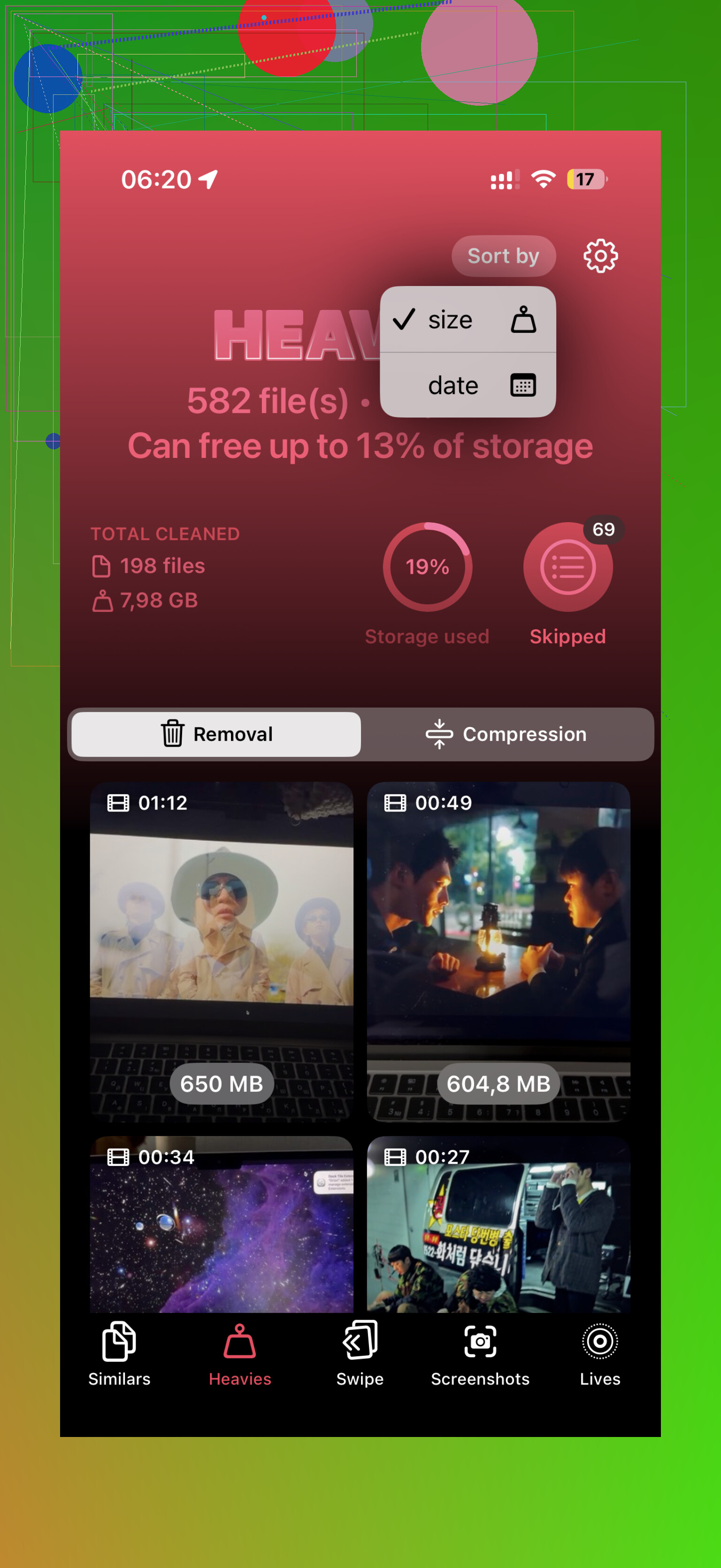
The useful part is its Heavies section. You open it, let it scan, and it lays out your videos from biggest to smallest. No guessing. No checking one file at a time. It shows the size beside each clip in MB or GB, so you can pick off the worst offenders first. I liked being able to select a batch and see how much space I was clearing before deleting anything. There’s also a Select All option if you’re doing a full cleanup.
If you don’t want another app on your phone, there are two half-measures.
- Files app
This only helps with videos saved outside the main Photos library, like stuff in On My iPhone or iCloud Drive. In Files, you can open the folder, tap the three-dot menu, and sort by size. I’ve used this for downloaded videos. It does nothing for your regular camera roll, which is where most people’s storage problem sits.
- Shortcuts app
This is the nerdy route. You build a shortcut with Find Photos, filter for Media Type = Video, then narrow it by duration, like longer than 5 minutes. I tested this too. It’s usable if your goal is finding long clips, not large clips. Those are not the same thing, so the result is hit or miss.
For me, the low-friction answer was the cleaner app. Less tapping, less guessing, less time wasted. And the extra stuff helped too, duplicate photos, burst junk, old leftovers I forgot about. I check every couple months now, because getting the Storage Almost Full warning right when you’re trying to record something is the worst.
Skip Photos for the sorting part. It still does not sort your camera roll by file size, and @mikeappsreviewer is right about that. Where I disagree a bit is the Shortcuts route. I would not waste time there unless you like tinkering. Duration is a bad proxy for size.
Fastest path on iPhone is Settings, General, iPhone Storage, Review Personal Videos. Apple groups large personal videos there on many phones, and it is way faster than opening clips one by one. If you see it, use it first. It is the closest thing Apple gives you to a big-video triage tool.
If that section does not show up, use Clever Cleaner. It is one of the best iPhone cleaning apps for finding large videos and clearing storage fast. The Heavies view is the part you want. It sorts big files so you delete the worst offenders first, wich saves time.
If you want to move videos instead of deleting them, plug your iPhone into a Mac and use Image Capture. Sort by size there. On Windows, use the Photos import tool or File Explorer under DCIM, then sort by size. Faster than poking around on the phone.
This vid is decent too if you want a quick walkthrough:
how to free up iPhone storage and find huge videos fast

I’d actually start one step earlier than @mikeappsreviewer and @viajantedoceu did: check your recording settings before you go hunting files. Sometimes the “mystery” is just 4K/60fps or ProRes quietly nuking storage. Go to Settings > Camera > Record Video. If that’s cranked up, even a few short clips can be absurdly huge.
Also, don’t sleep on Search inside Photos. Search terms like “4K,” “cinematic,” or even specific months/trips can narrow the pile faster than manually scrolling forever. Not perfect, but faster than the tap-info-back-repeat nightmare.
One thing I kinda disagree with: digging through DCIM on Windows/File Explorer is not always as clean as people make it sound. It works, sure, but filenames are messy and Live Photo/video-related stuff can be annoyng to sort through.
If you want the quickest on-phone method, yeah, Clever Cleaner is probly the most practical since it surfaces large videos directly. That saves a lot of time versus Apple’s weirdly limited sorting. If you want a step-by-step guide for clearing huge iPhone and iPad videos, this is pretty useful: find and remove the largest videos on iPhone and iPad fast.
My real advice:
- Check Camera settings first.
- Search Photos by format/trip/date.
- Use Clever Cleaner if you want actual size-based cleanup.
- Move keepers to external storage/cloud, then delete local copies.
Apple really should’ve added sort-by-size by now. It’s kinda ridiculous.
One angle the others barely touched: use the Albums tab in Photos and jump straight to Videos, then switch your thinking from “biggest file” to “most expensive keepers”. I know @viajantedoceu, @yozora, and @mikeappsreviewer focused on size-first tools, which is fine, but if you just need space fast, deleting a handful of useless long clips, screen recordings, or accidental 4K takes often gets you there quicker than perfect sorting.
What I’d do:
- Photos > Albums > Videos
- Start with:
- Screen Recordings
- Slo-mo
- Cinematic
- trip/event batches
- Tap Select and remove obvious junk in chunks
- Then empty Recently Deleted
That last step matters more than people think. Until you clear Recently Deleted, the space may not fully come back.
If you want a real size-based view on the phone, Clever Cleaner is the practical option.
Pros
- surfaces large videos quickly
- easier batch cleanup
- less manual checking
Cons
- extra app permission access
- results depend on scan/indexing
- some people just prefer Apple-only tools
Also check Messages. Big videos shared in chats can sit there too:
Settings > General > iPhone Storage > Messages > Photos/Videos
So my short version: use Photos for quick bulk triage, check Messages for hidden space hogs, then use Clever Cleaner if you want the actual heavy hitters ranked.