My desktop hard drive just started making a repetitive clicking noise and is no longer detected reliably by my PC. It has irreplaceable family photos and important work files that I never fully backed up. I’m worried it’s a mechanical failure and don’t want to make things worse. What’s the safest way to recover data from a clicking hard drive, and what should I absolutely avoid doing at home before considering professional data recovery services?
so my WD Elements 1TB started that classic click-click-click about three days ago and I went straight into idiot mode. Kept plugging it back in, different USB ports, different cables, different PCs, thinking Windows would finally see it and everything would be fine.
It was not fine.
I burned a whole evening doing this. Watching Disk Management like it was going to magically show up if I stared hard enough. If you are at this stage, stop. I wish someone had slapped my hand away from the USB port.
Here is what I figured out after reading a lot and talking to a couple of people who do data recovery for work.
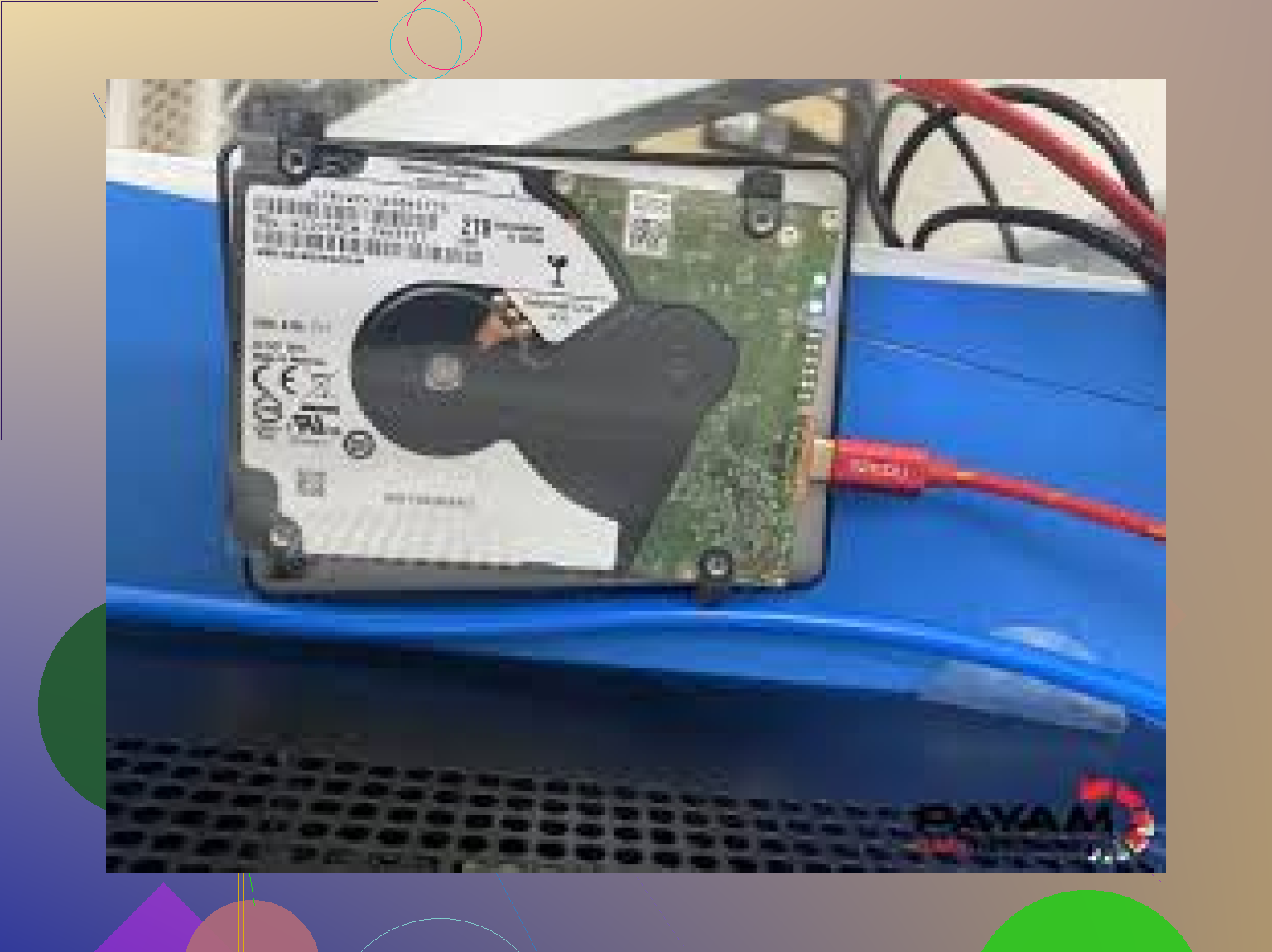
The click is almost never a software thing. When you hear a drive clicking over and over, it usually means the read/write heads are hunting for data they cannot reach or the platters are failing to spin up in a stable way. The drive is trying, failing, resetting, trying again. That physical loop is what you hear.
Once it reaches that point, software tools do not fix anything. No recovery app reads data if the heads are damaged or the platters are not spinning right. I used to think, “I will run some magic recovery program and get it all back.” That works when the drive is logically messed up but still healthy physically. With a clicking drive, the problem sits in the hardware.
What helped me stop guessing and start treating it like a real failure was this thread:
https://discussion.7datarecovery.com/forum/topic/whats-the-best-way-to-recover-data-from-a-clicking-hard-drive/
It is people talking specifically about clicking drives, not the usual copy-paste advice of “try Recuva” on everything. They break down where the line sits between trying software once and going straight to a lab.
The main patterns I kept seeing, across multiple posts and some tech comments:
• If the drive clicks in a steady rhythm, never mounts, then powers down, that usually means the heads are gone or failing hard. In that case, each extra power cycle adds more risk of the heads scraping the platter surface or getting worse. No at-home trick fixes that.
• If it clicks a couple of times on startup, then spins up, and your system at least sees a drive name or a capacity, you might still have a short window. The play there is not “try 10 different utilities.” The play is “try to image the drive once, end to end, starting with the most important sectors, and stop if it keeps throwing read errors or makes worse sounds.”
Imaging here means you do not browse files or copy folders through Explorer. You use something that reads the drive in a straight line and writes it to another disk as an image. Stuff like ddrescue on Linux gets mentioned a lot because it handles failing drives better than the usual GUI tools. But even then, if the drive is clicking heavily, every second powered on is a tradeoff.
Another thing that keeps coming up: platter damage is the end of the road. Once the magnetic surface is scratched, whatever data sat in that area is gone. Even clean room people cannot pull data from missing media. They might get parts of the drive that are still intact, but the damaged areas stay dead. So all the power cycling we do at home before we know better is where a recoverable failure turns into unrecoverable.
Clean room recovery is expensive. I got one quote that started around 600 dollars and another closer to 1k, depending on parts and complexity. I winced. Hard. But if the data is stuff you cannot replace, that price suddenly looks small compared to losing it for good because you tried half a dozen free tools and “freezing the drive” tips from old forum posts.
My own drive right now:
• Still makes a couple of clicks when it spins up.
• Sometimes shows up in Disk Management with the right size but without a partition.
• Sometimes does not show at all.
So it is in that ugly middle zone.
What I have done so far:
- I stopped plugging it in for casual testing.
- I backed up everything important from my other drives, in case I needed to reuse hardware or move things around for an image.
- I read that thread above front to back a few times and logged the patterns people reported.
The decision points I am stuck on, and you might be too:
• Is the drive stable enough to attempt a single imaging run?
• If it times out, do I keep trying or do I kill power and accept that it needs a lab?
• Is the data important enough to eat a 4-figure bill?
From the experiences in that linked thread and a few others:
People who managed any success without clean room:
• Their drives still spun up reliably.
• The clicking was brief or occasional, not constant.
• The OS detected the drive every time, even if it hung when accessing certain folders.
• They went straight to imaging, did not browse, did not run 10 different scanners.
People who lost everything or made it worse:
• Kept trying random software.
• Let the drive sit there clicking for hours.
• Tried physical “tricks” like tapping the case or putting it in a freezer.
• Opened the drive casing at home. Dust inside a hard drive is a fast way to ruin any remaining chance.
So, if your drive is in the early “weird noise but still mounted” phase, you have a narrow window where careful imaging might work. If you are already at the constant rhythmic click and power off phase, every extra spin attempt is gambling with the platter surface.
For my WD Elements, I am leaning toward not touching it again at home. The data is family photos and a bunch of project archives that would be painful to lose. I would rather send it to a lab once, than keep stressing it and turn a fixable head issue into permanent platter damage.
Curious if anyone here pulled data off a clicking drive without going to a clean room and did not regret it months later when the replacement drive also died and they needed that old backup. My drive still gets partially detected sometimes and I am trying to figure out if that is a hopeful sign or a trap that tempts you into one more power cycle.
Power it off now. No more “one more try” boots. Every spin with a hard click increases the odds of platter damage. Once the magnetic layer is scratched, no lab fixes that.
I agree with most of what @mikeappsreviewer wrote, but I am a bit less absolute on software. There is a narrow use case where software helps, and a lot where it is a trap.
Think in 3 stages.
- Stop the damage
• Unplug the drive.
• Do not freeze it, tap it, or open it.
• Do not run SMART tests, benchmarks, chkdsk, or defrag. Those hammer the heads over the worst areas.
- Decide if this is “home try once” or “lab only”
Signs you should go straight to a pro lab
• Consistent rhythmic clicking every power on.
• Drive never appears in BIOS or OS.
• Spins up, clicks, spins down or powers off.
• Important data with no second copy, like your case.
Signs you might get a single at home attempt
• Clicks briefly on startup then quiets.
• BIOS sees the model and capacity every time.
• OS detects the drive, even if it freezes on access.
• No grinding, scraping, or new louder noises.
If you are closer to the first list, skip software, skip imaging, send it to a clean room. Expect 600 to 1500 USD in many regions. For irreplaceable family photos, that price is often worth it. For work files, check if your company will expense it.
- If you still want to try at home
Only do this if the drive still mounts sometimes and the clicking is short, not constant.
A) Prepare first
• Get a second healthy drive, same or larger size.
• Use a direct SATA connection inside a desktop. Avoid cheap USB enclosures.
• Work on a stable power source. No flaky USB hubs.
B) Try a sector by sector image
Do not browse photos in Explorer. Do not open folders. Your goal is one sequential read from start to end.
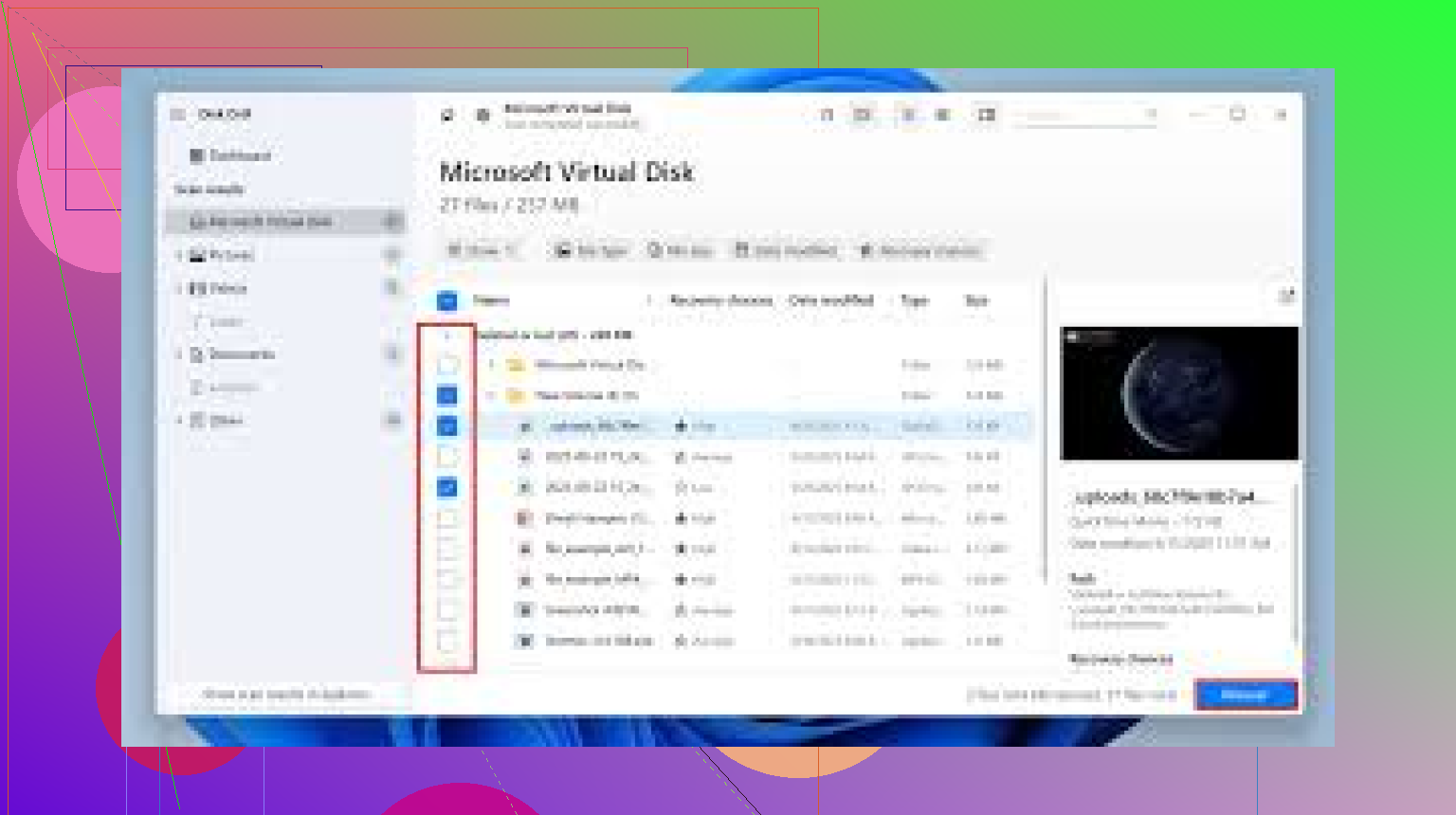
On Windows, a lot of people jump to ddrescue on Linux, which is solid, but if you are not already comfortable with Linux you will waste time learning while the drive keeps failing. In that case a tool like Disk Drill is more realistic for many users. It focuses on data recovery from failing drives, supports partition level and file level recovery, and has decent handling of bad sectors.
If the drive stays online long enough, you can point Disk Drill at it and try to scan only once, then recover to another drive. The key is to stop if:
• The clicking gets louder or more frequent.
• The drive starts dropping off mid scan.
• The system freezes hard for long stretches.
I slightly disagree with the idea that software is never helpful once clicking starts. There are cases where the heads still work but the firmware retries aggressively on bad sectors, which causes light ticking. A careful one time scan or image, with something like Disk Drill, has pulled a lot of photos and documents for people I have helped. The trick is discipline. One controlled attempt, not endless retries.
C) Do not keep pushing through errors
If a tool hangs for a long time on one region with a noisy drive, bail out. Each retry cycle is more head travel over a weak surface.
- If you choose a lab
• Do not power the drive again.
• Do not remove any stickers or screws.
• Pick a lab that gives a free evaluation and a price range before you commit.
• Ask if they have donor parts for your exact model in stock. That affects success rates and cost.
- Plan for next time
Once this is over, set up at least a 3–2–1 style plan for your photos and work.
• 3 copies of important data.
• 2 different types of storage, for example internal drive and external drive.
• 1 copy offsite or cloud.
For future reference, if you want something more structured on how to handle recovery from any desktop or external drive, this video is useful:
simple steps to recover data from damaged hard drives
Short version for your situation
• Stop powering the drive.
• Given the repeating click and unreliable detection, treat it as a hardware failure.
• If the data is as important as it sounds, go straight to a clean room lab.
• Only try tools like Disk Drill or ddrescue if the drive still mounts reliably and you accept the risk of losing the small remaining chance a lab might have.
Power it off. That’s the part almost everybody ignores until it’s too late.
You already got solid breakdowns from @mikeappsreviewer and @cazadordeestrellas. I’ll try not to rehash their step‑by‑step stuff, but add where I slightly disagree and what I’ve seen work in similar “click of death but maybe not totally dead” cases.
1. Don’t chase “fixing” the clicking
This is where I’ll push back a bit on the whole “how do I fix my clicking HDD” mindset. You don’t fix it. You extract from it. Big difference.
Clicking + unstable detection almost always means some combo of:
- Heads struggling to calibrate
- Firmware getting stuck retrying bad areas
- Motor or spindle issues
None of those are “run a repair tool and it’s fine again” situations. Any tool that writes (chkdsk, defrag, “repair filesystem”) is the last thing you want.
Your goal is not to make that drive healthy again. It’s to get your photos and work files off it once, to a safe place.
2. Decide your risk tolerance before you touch it again
This part people skip, then regret later.
Ask yourself, bluntly:
- If a lab quotes you 800–1200 USD, would you actually pay it for those photos/files?
- If you try at home and it dies halfway through, are you going to be ok knowing a lab might have saved some of it?
If your honest answer is “I’d pay that to get this stuff back,” then I’d personally stop DIY right now and treat it as lab‑only, given you already have repetitive clicking and unreliable detection. That’s usually past the “safe DIY” zone.
If your answer is “I might pay, but I’d rather gamble a little first,” then:
- Limit yourself to one controlled attempt
- No random utilities
- No “one more try” loops
That’s the line where I slightly disagree with the “never use software once it clicks” stance. There is a narrow use case for software, but only if the drive still shows up consistently and the clicking is brief, not constant.
3. If you do try software, be smart about what you use
You mentioned it is not reliably detected. That’s already a red flag. Still:
- If BIOS / Disk Management never sees a capacity: forget software, that’s lab territory.
- If it sometimes shows the correct size and model, and stays online for a few minutes, you might attempt a read‑only pass.
Priority is imaging or targeted recovery, not random scans.
Here’s where Disk Drill fits in:
- Disk Drill is actually decent on drives that are flaky but still responding.
- Use it in a read‑only recovery mode, saving everything to a different physical drive.
- Do not enable any “repair” or “rebuild” options.
- Start with the folders or file types you care about most (photos, docs), not the whole drive.
If Disk Drill hangs, the clicking ramps up, or the drive disconnects mid‑scan, stop immediately. That’s your sign you’re done with DIY.
4. Don’t fall for the “tricks”
You already read the warnings, but it’s worth repeating because this is where people destroy whatever chance is left:
- Freezer trick: no. That was marginally useful on very old drives with different tolerances. On modern drives you’re just creating condensation risk.
- Tapping / twisting the drive: every shock is extra head/platter damage potential.
- Opening the drive at home: this just sprinkles dust and kills clean‑room options.
All of that looks “creative” right up till the lab sends you a “platter is scored, nothing we can do” report.
5. When to say “lab only” with no more debate
Given your symptoms:
- Repetitive clicking
- Not reliably detected
- Irreplaceable family photos + critical work files
You check almost all the “send to lab” boxes. The only scenario where I’d personally still try software first is:
- It shows up in BIOS every time
- Clicking is brief on spin‑up, then quiet
- It stays visible in the OS long enough for a single structured recovery attempt
If that’s not your case, the more you boot it, the more you’re just sanding the platters.
If you go the lab route:
- Do not power it on again.
- Don’t remove labels or covers.
- Look for places that do free diagnosis and a price range before you commit.
- Ask specifically about your model’s common failure patterns and success rates.
6. Extra reading that’s actually useful
If you want a cleaner, human‑readable breakdown on how to deal with a clicking hard drive without killing your data, this is a solid guide:
how to handle a clicking hard drive and protect your files
It walks through both the “try once at home” path and “go straight to pros” in a way that’s easier to digest than forum horror stories.
If I were in your exact position, with that combo of noise + flaky detection + one‑copy‑only family photos, my order of operations would be:
- Power off and put the drive aside.
- Decide if I’m truly willing to pay for lab work.
- If yes → straight to lab, no more home testing.
If no → one careful read‑only pass with something like Disk Drill, then accept whatever I get and stop.
What kills these drives isn’t usually the first failure. It’s all the panicked “maybe this time it’ll mount” power cycles after.