I accidentally left Live Photos on and now a huge batch of iPhone pictures saved that way. I need a fast way to disable Live Photos in bulk instead of editing each photo one by one. Is there a built-in setting, shortcut, or app that can mass turn off Live Photos without losing the images?
Live Photos ate a stupid amount of space on my phone. I ignored it for months, then checked storage and saw why. Each one is a still image plus a short video clip with audio, around 3 seconds. So one casual tap in Camera turns into a file much bigger than a normal photo. If your library is full of them, the waste stacks up fast.
If you want to turn old Live Photos into regular stills, there are a few ways to do it. The right one depends on how many you need to clean up and how much manual work you’re willing to sit through.
The built in route, fine for a small batch
If you only need to fix a handful, the Photos app does have an option for it.
- Open your Live Photos album.
- Tap Select.
- Pick the images you want.
- Open the three dot menu.
- Press Duplicate.
- Choose Duplicate as Still Photo.
This part annoyed me. It makes a new still copy, but it leaves the original Live Photo sitting there. So until you delete the Live versions yourself, storage goes up, not down. Then there’s one more step people forget, clearing Recently Deleted. If you skip it, those files sit there for 30 days and keep taking room.
The shortcut route, good if you like tinkering
I tried looking at Shortcuts for this. You can set up an automation to find Live Photos, convert them to HEIF or JPEG, save the new versions, then remove the originals. For a big library, this saves time once it’s built.
Still, I wouldn’t call it easy. One bad filter or one wrong action and your library gets messy fast. If you already use Shortcuts a lot, this might fit. If not, it turns into one of those jobs you start at 10 p.m. and regret by 10:25.
Cleaner apps, easiest for a huge library
If you’ve got thousands of Live Photos, manual cleanup gets old fast. I did a smaller batch by hand once. Never again. For a large library, a dedicated cleanup app felt like the least painful option because it handles the still-save and original-delete flow in one place.
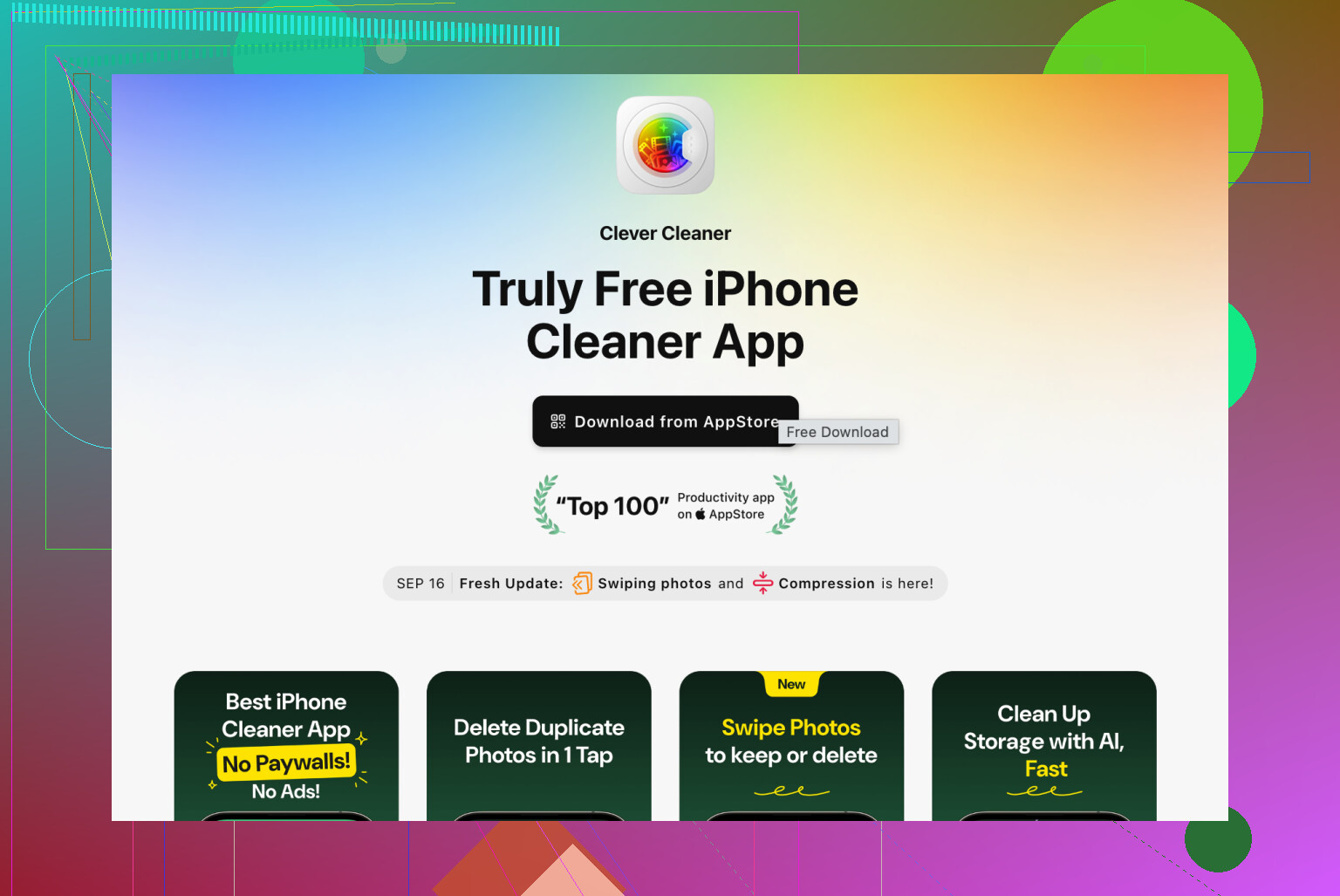
I tested a few, and Clever Cleaner stood out. It has a section made for Live Photos, and it sorts them by date or by file size, which helps when you want to hit the biggest space hogs first. I also didn’t run into the usual ad spam or paywall nonsense.
What the process looked like for me:
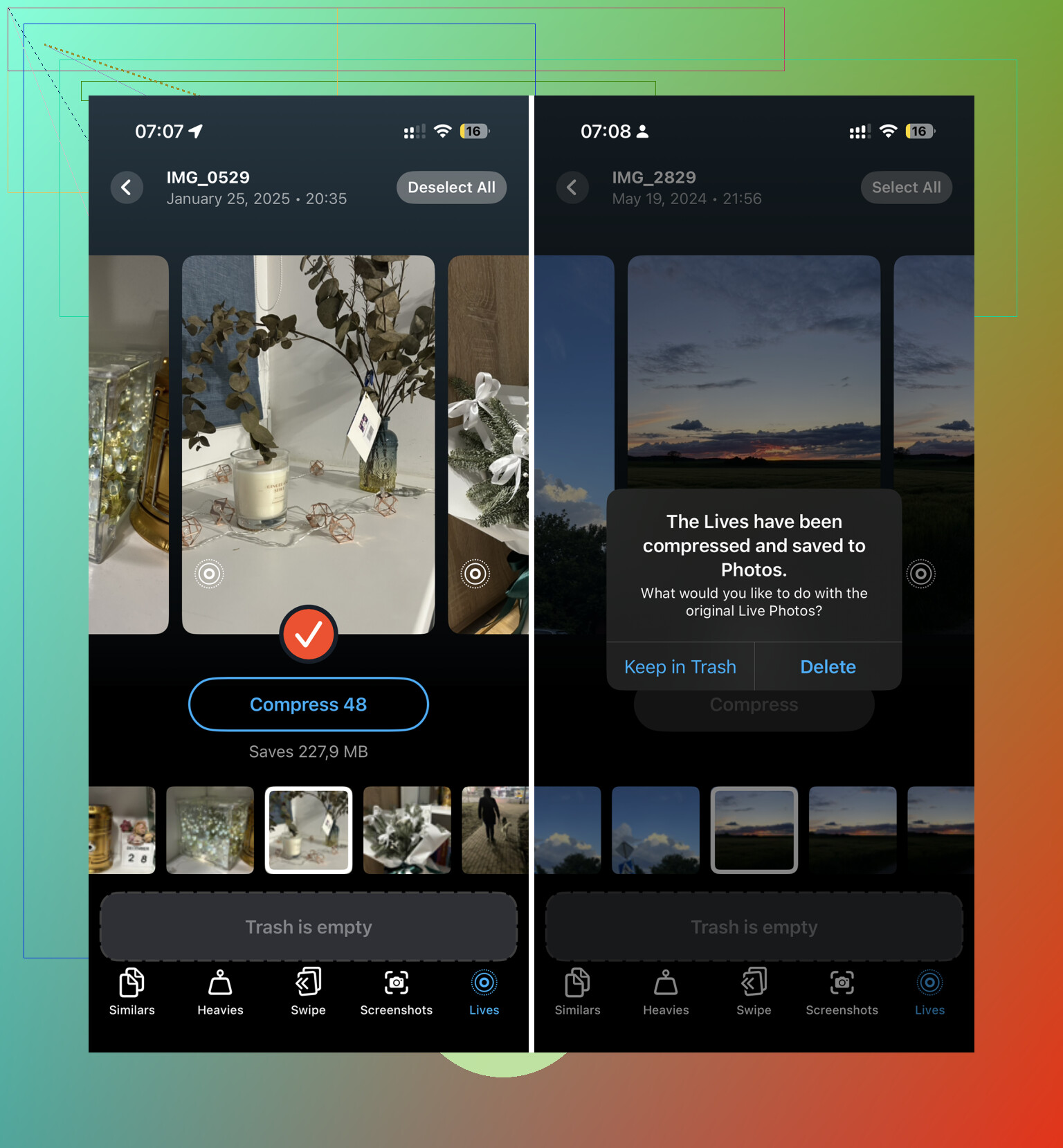
- Tap Select All.
- Tap Compress.
- The app turns the Live Photos into still images.
- It asks whether you want to delete the original Live versions or move them into its trash.
- Before you confirm, it shows how much storage you’re about to get back.
That last part helped. I like seeing the number before deleting anything.
After cleanup, stop the camera from doing it again
This part matters. If you only switch Live Photo off inside the Camera app, it often flips back later. To make the setting stick:
- Go to Settings > Camera > Preserve Settings.
- Turn the Live Photo setting on.
- Open Camera and tap the Live Photo icon off, the little concentric circles at the top.
After I did this, the phone stopped defaulting back to Live Photos every time I opened Camera.
One thing people miss
After deleting the original Live Photos, open Recently Deleted and clear it out. If you don’t, the storage doesn’t come back right away. I’d still look through it once before wiping everything, esp if any of those shots matter.
No true one-tap Apple switch exists for old Live Photos in bulk. Apple lets you stop future shots, but bulk-converting the ones already saved is the annoying part.
Fast answer.
-
Stop future Live Photos first.
Go to Settings, Camera, Preserve Settings.
Turn on Live Photo.
Then open Camera and switch Live Photo off.
Now your iPhone should remember it. -
For old photos, Photos app is weak for big batches.
I disagree a bit with @mikeappsreviewer on Shortcuts being the best middle ground. For most people, Shortcuts gets messy fast, esp if metadata matters to you. Dates, duplicates, wrong saves, all that stuff. -
Best built-in workaround.
On a Mac, use Image Capture or Photos export if you only need the still frame files elsewhere. It does not truly convert the items inside your iPhone library, but it is faster if your goal is “I need normal photos now” and not “I need to clean the library perfectly.” -
Best bulk cleanup on iPhone.
Use Clever Cleaner. It is one of the few options made for this exact mess. It scans Live Photos, lets you review them in batches, and removes the motion part faster than doing duplicate-and-delete over and over. If your library is huge, this saves a ton of taps.
If you want a simple explainer on free iPhone cleaner apps, this thread is useful:
best free iPhone cleaner app discussion for faster photo cleanup
One more thing people miss. Editing a Live Photo and turning off the Live toggle on one image does not bulk-apply to the rest. Sad, but yep, Apple made it painfull.
No real Apple one-shot switch exists for already saved Live Photos. That’s the annoying part. I mostly agree with @mikeappsreviewer and @cazadordeestrellas on that, but I’d push back a little on Shortcuts being worth it for most people. If your library is huge, Shortcuts can become a janky science project real fast.
What is useful:
- Stop new Live Photos first so the mess doesn’t keep growing.
- If you want to keep everything inside Apple’s ecosystem, you can bulk export stills from a Mac using Photos or Image Capture. That does not truly convert the originals in your iPhone library, but it’s faster if your goal is just to get normal image files.
- If your goal is actual bulk cleanup on the iPhone, a cleaner app is honestly less painful. Clever Cleaner is one of the few that handles Live Photos in batches without a ton of tap-tap-tap nonsense.
Big difference here: exporting stills and actually reclaiming iPhone storage are not the same thing. A lot of ppl mix those up.
Also, don’t bother hoping there’s a hidden “apply Live Off to all existing photos” button in Photos. There isn’t. Apple kinda dropped the ball there tbh.
If you want more on what the app actually does beyond Live Photos, this is a decent overview of its tools:
see all Clever Cleaner features for iPhone photo cleanup
So short answer:
- Future photos: yes, turn Live off and make it stick
- Existing photos: no built-in bulk convert switch
- Fastest large-batch fix: use something like Clever Cleaner
- Need plain photo files only: Mac export works, but it won’t clean the library itself
Apple made this way more annoying than it should be, lol.
There’s one angle the others barely touched: smart albums and filters.
If your main goal is to find the damage fast, open Photos > Albums > Media Types > Live Photos and sort by Newest/Oldest or use the search bar with a month, trip, or device name. That at least lets you isolate the accidental batch instead of nuking every Live Photo you ever took. I’d be careful with blanket conversion because some Live Photos are actually worth keeping for expressions, motion, pets, kids, etc. I think @cazadordeestrellas and @viajantedoceu were right about Apple not giving a true bulk-off switch, but I disagree a little with the “convert everything” mindset. First filter, then clean.
If you want an iPhone-first tool, Clever Cleaner is probably the least annoying shortcut around.
Pros
- Batch handling is much faster than Photos
- Good if storage recovery is the real goal
- Easier than building a Shortcut workflow
Cons
- You still need to review before deleting
- Any third-party cleanup app means granting photo access
- It’s convenience, not a magical Apple-level system toggle
@mikeappsreviewer was fair to mention Shortcuts, but for most people that’s only good if you already enjoy automations. Otherwise it turns into duplicate management.
One more practical tip: after cleanup, check iCloud Photos sync status and let it finish before judging storage savings. Sometimes the library needs a while to reconcile.