I misplaced my TV remote and want to use my iPhone to turn off the TV instead. Which app or iPhone feature should I use, and does it work with any smart TV?
Your iPhone can turn off most modern smart TVs, as long as the phone and TV are connected to the same Wi-Fi network.
If you have several TVs or different brands around the house, a universal remote app like TVRem is probably the simplest option. Open the app, connect to the TV, and use the power button. It supports Samsung, LG, Roku, Fire TV, Android/Google TV, and Apple TV, so you don't have to keep a separate app for every brand.
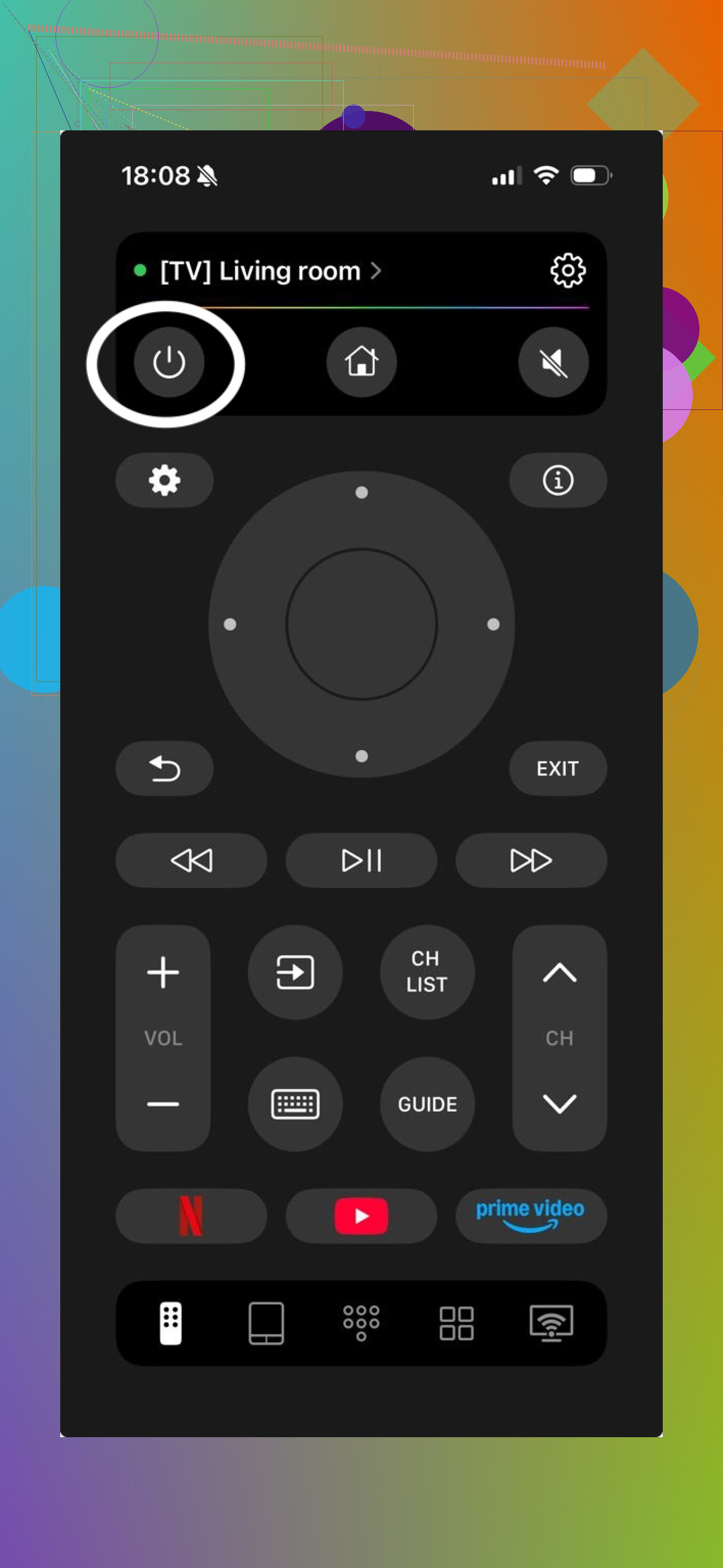
You can also use the manufacturer's own remote app:
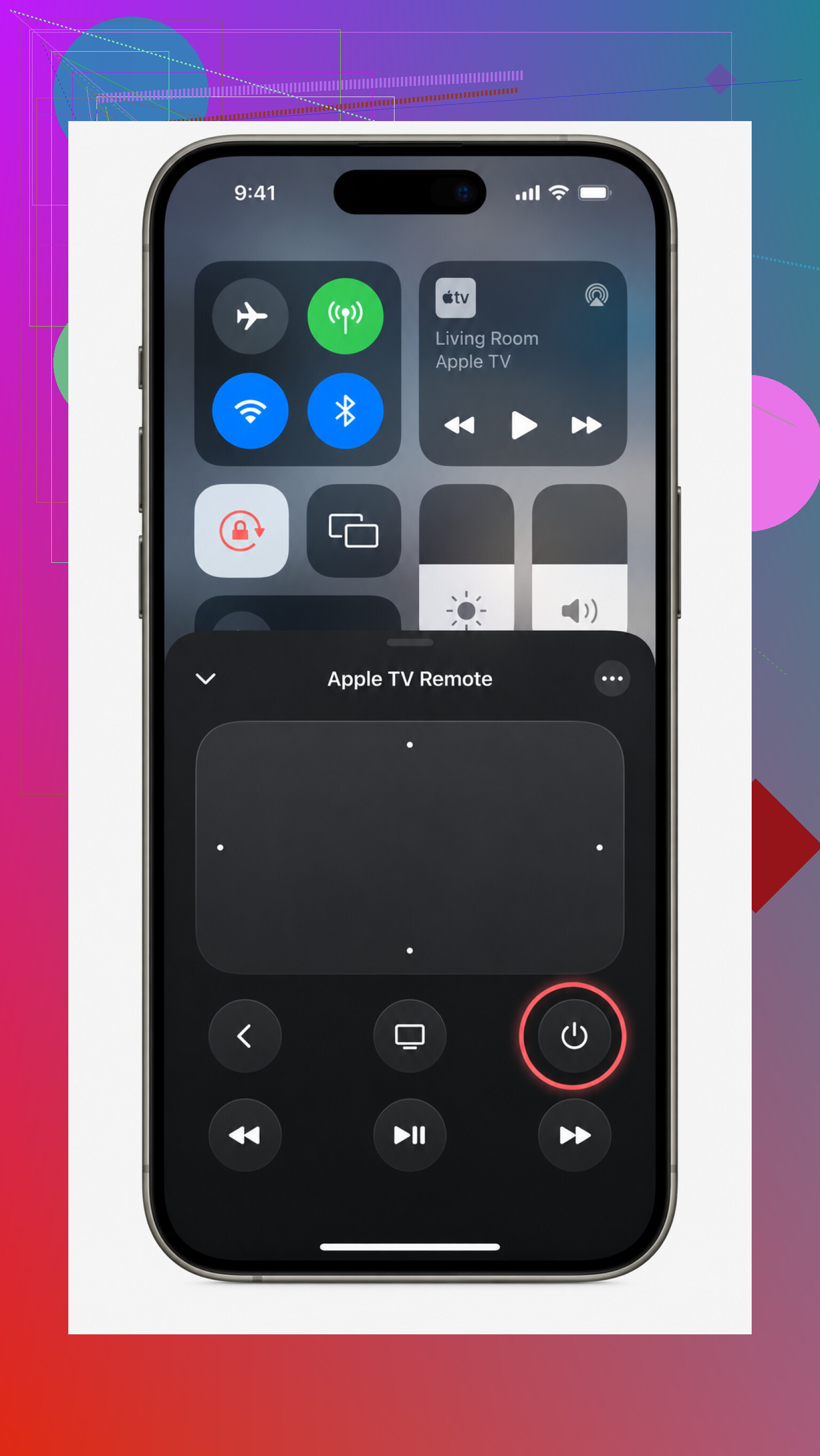
- Apple TV: Open Control Center by swiping down from the top-right, then tap the Apple TV Remote. If HDMI-CEC is enabled, putting the Apple TV to sleep should also turn off the connected TV and other equipment. You can also say, “Hey Siri, turn off the Apple TV.”
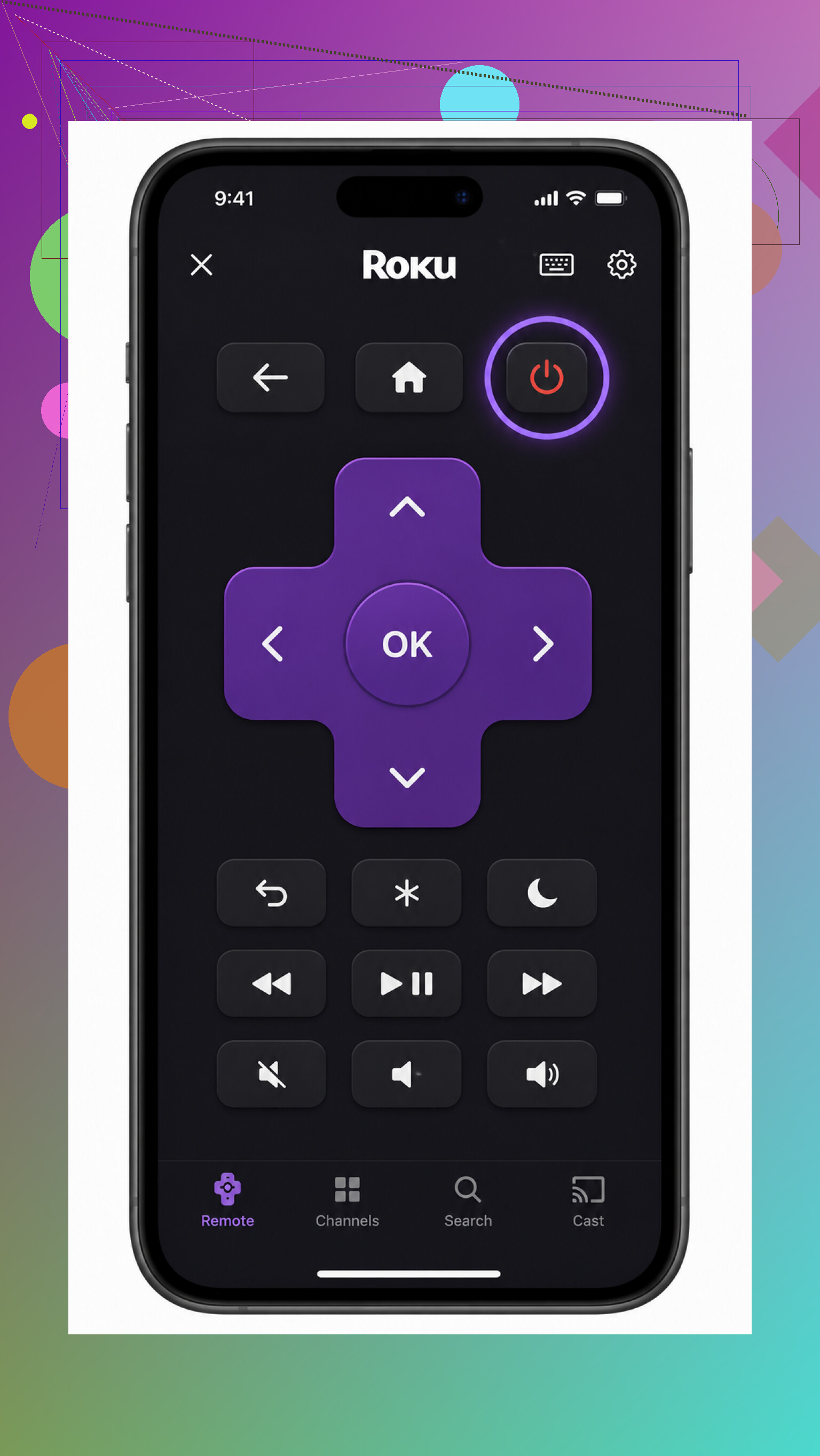
- Roku: The remote inside the Roku app includes a power button for Roku TVs and other Roku-powered sets.
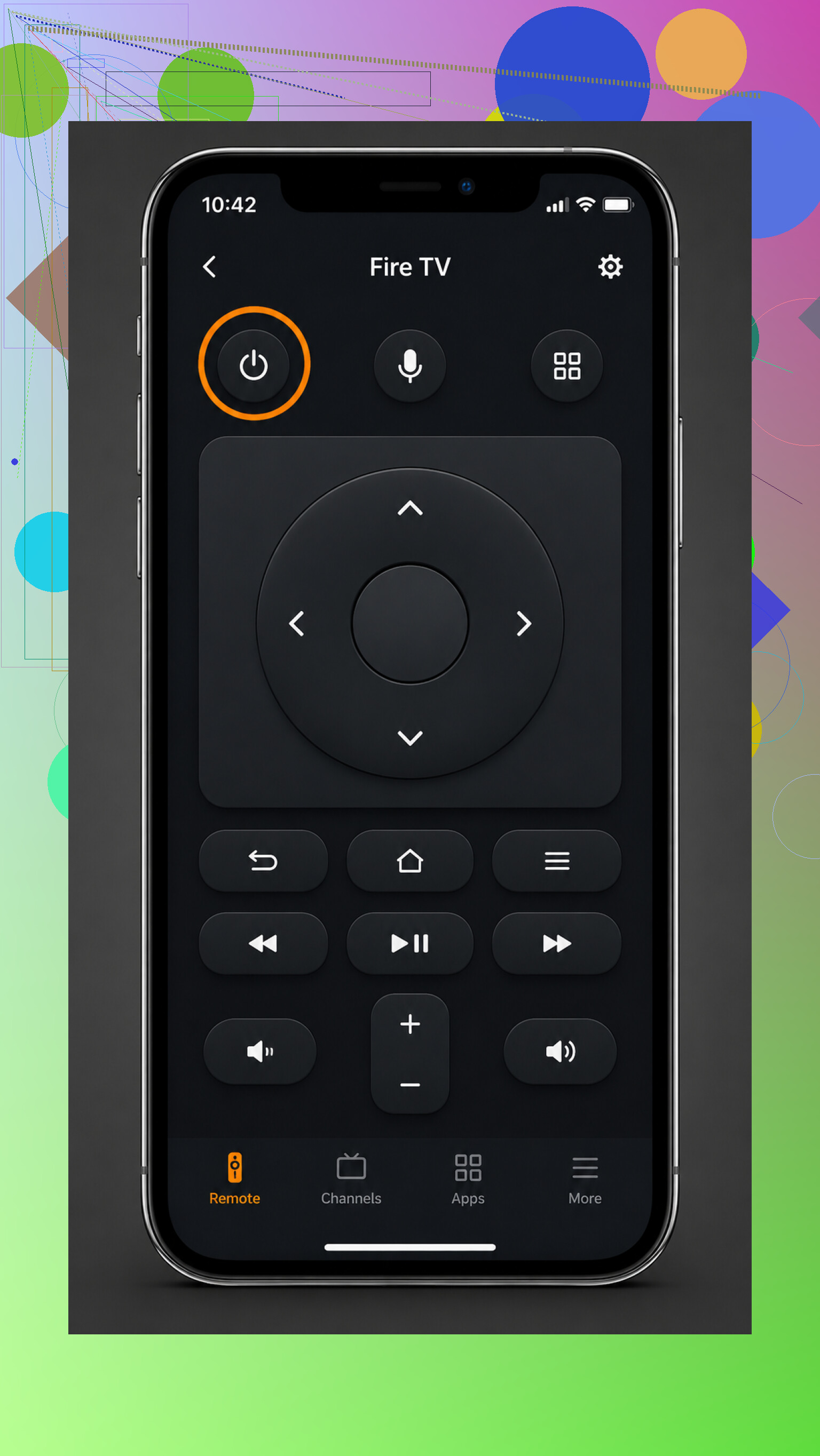
- Fire TV: The Fire TV app can switch off the TV on supported models.
- Samsung and LG: Link the TV through Samsung SmartThings or LG ThinQ, and you'll get a power control in the app.
If your TV is connected to Alexa or Google Assistant, you may not need an app at all. A voice command like “turn off the TV” should work once everything is linked correctly.
Keep in mind that these controls usually put the TV into standby or sleep. They don't disconnect power the way unplugging it or flipping a wall switch would. That's normal for everyday use.
An older TV without Wi-Fi generally can't be turned off directly from an iPhone. You'll still need the physical remote or wall switch, unless you add something like a smart plug that can cut the power.
The exact steps depend on whether you're controlling a smart TV itself or a device such as an Apple TV or streaming stick.
Expect a little setup first. An iPhone has no infrared blaster, so it cannot act like a traditional remote for every TV. Use the TV maker’s app or Apple TV Remote if your equipment supports it, and make sure Wi-Fi control or “network standby” is enabled. Otherwise, once the TV is fully off, the app may be unable to wake or control it.
The annoying catch is that first-time pairing may require approving a prompt on the TV, which is awkward without the original remote. Try the TV maker’s app on the same Wi-Fi, or Control Center’s Apple TV Remote if you have an Apple TV box. It won’t work with every smart TV, so check underneath or behind the TV for a small joystick-style button to confirm pairing or simply power it off.
Check the TV’s physical controls first. Many sets have a hidden power button under the center logo or along the back edge, which is quicker than installing and pairing an app without a remote.
The quickest app is usually the one made for the device you actually watch through, but controlling a streaming box and controlling the TV screen are not always the same job.
If the TV itself is connected to Wi-Fi, its manufacturer’s app is generally the better choice for direct power control. Samsung uses SmartThings, LG uses ThinQ, and other brands have their own equivalents. A universal remote app is more convenient when you have several brands, though it still depends on each TV exposing compatible network controls. “Universal” does not mean it can operate every television ever made.
Apple’s Control Center remote is different. It primarily controls an Apple TV box. Pressing its power button may turn off the television through HDMI-CEC, but only when CEC is enabled on both devices. Without that setting, the Apple TV can go to sleep while the screen stays on. The same distinction applies to Roku and Fire TV apps when the streamer is separate from the television.
There is another built-in iPhone option people overlook: if the television has already been added to the Apple Home app, you may be able to switch it off there or ask Siri. That is cleaner than installing another remote app, but it only works with supported and properly configured TVs.
Being on “the same Wi-Fi” can be misleading too. If your phone is on a guest network, or the router blocks devices from seeing each other, the app will not find the TV even though both have internet access. Move the iPhone to the main Wi-Fi network before assuming the app is broken.
So I’d compare the options this way: use Apple TV Remote for an Apple TV box, use the TV maker’s app for the most reliable direct control, and use a universal app when convenience across multiple brands matters more. None of these is guaranteed to work with any smart TV, especially if network standby is disabled or first-time pairing needs confirmation on the screen. In that situation, @stealth_script’s suggestion is probably the fastest fix: find the physical button, then configure the app while the TV is on.
If the TV is an OLED, skip the smart-plug workaround. Cutting mains power can interrupt maintenance cycles the TV may run after you switch it off, so a smart plug is not a proper replacement for the remote.
Use the manufacturer’s app for direct control: SmartThings for Samsung, ThinQ for LG, or the matching app for your brand. Apple’s Control Center remote is mainly for an Apple TV box, and it only shuts down the television when HDMI-CEC is configured correctly.
No, this does not work with every smart TV. The television must support network control, share the same local network, and usually be paired while its screen is on. Your iPhone has no infrared transmitter, so it cannot imitate an ordinary universal remote.
If pairing gets stuck, stop fighting the app and find the physical button under the bezel or on the back. Turn the set on with that, approve the pairing prompt, then configure phone control for next time.
Careful with this: on a lot of Samsung and LG sets, network standby is off by default under the eco or power-saving menu, so the very first time you shut the TV off with the app, it drops off Wi-Fi and won’t respond again. Turn that setting on while the TV is on, or you’ll be hunting for the physical button anyway like @stealth_script said.
Check the model number on the back of the TV, then install the free app made by that manufacturer. That is usually less frustrating than downloading the first “universal remote” app and discovering that the power button lives behind a subscription screen.
For Samsung, try SmartThings. For LG, use ThinQ. Roku TVs use the Roku app, and Google TV or Android TV sets can usually be controlled through Google’s app. Your iPhone needs to be on the same local Wi-Fi network, and the TV may display a pairing code or approval message. If you cannot confirm it without a remote, use the small physical button or joystick hidden under the bezel or around the back.
The Apple TV Remote in Control Center is only the obvious choice if you have an Apple TV box. It may shut off the television through HDMI-CEC, but it is not a secret universal remote Apple forgot to advertise. The iPhone has no infrared transmitter, so it cannot directly control every TV the way an old-school remote does.
I would avoid buying anything until you test the official app. If it cannot find the television, check that the phone is not using guest Wi-Fi and that the TV has network standby or remote-start control enabled. Some sets disappear from the network once switched off, which rather defeats the clever phone-remote plan. And no, it will not work with every smart TV, especially older models with limited network controls.