My iPhone keeps saying there isn’t enough storage to install the latest iOS update, even after I deleted apps, photos, and other files. I need help figuring out what else I can clear or if there’s another way to update my iPhone without losing important data.
I hit this with my iPhone more than once. Storage says a few GB are open, then the update fails anyway. Annoying, and the number Apple shows does not tell the full story.
The update size listed in Settings is only part of it. If iOS says the download is 2GB, your phone usually needs a lot more room while it works through the install. It downloads the file, expands it, then shuffles system data during setup. From what I saw, you want roughly 2x the listed size as a minimum buffer. For a big version jump, like moving to iOS 26, I would not try it with less than 20GB to 30GB free. I did before. It was a waste of time.
If you need space fast, here’s what moved the needle for me.
Use a cleaner app first
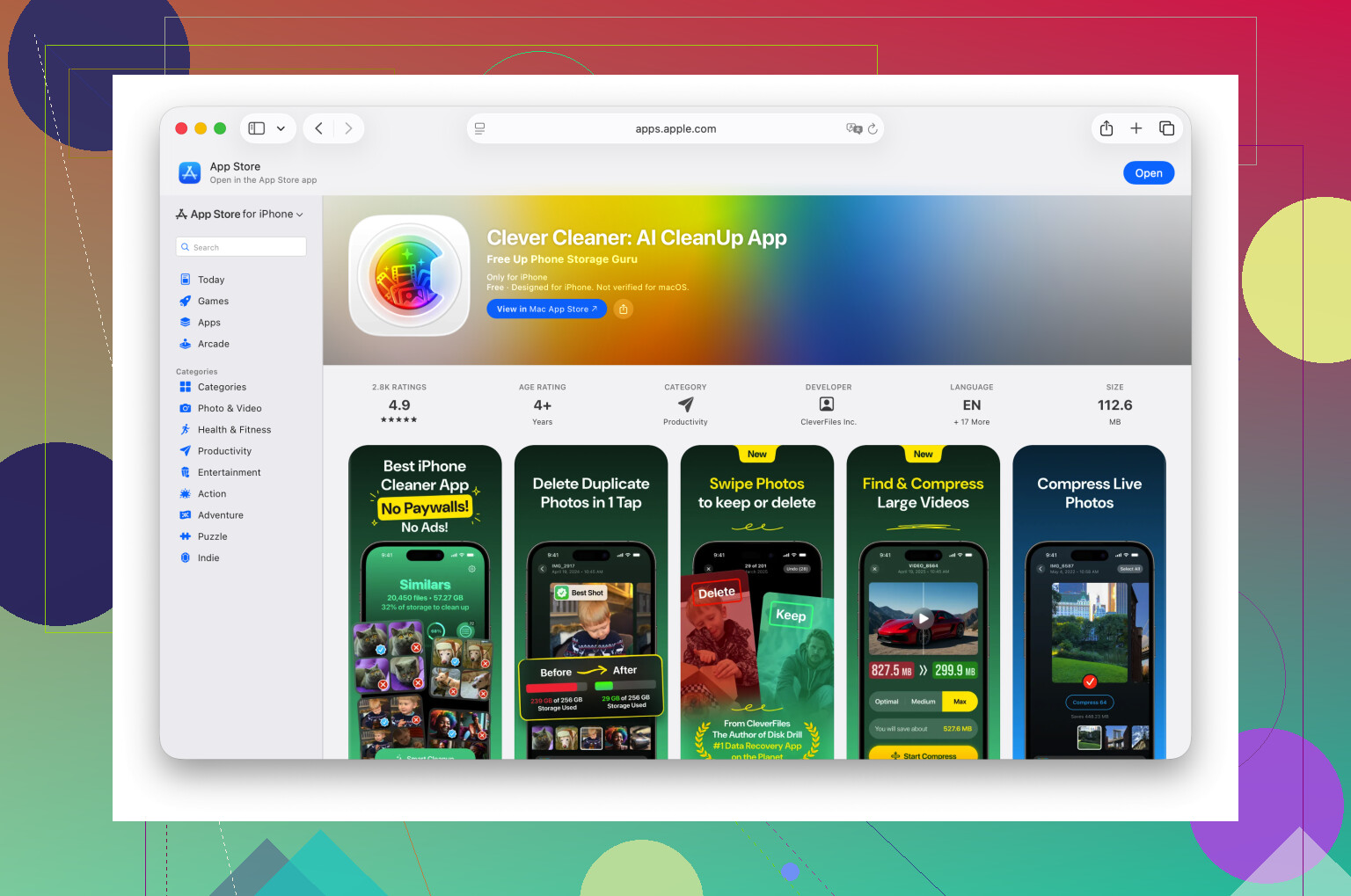
I used to scroll through photos by hand and it ate up an hour fast. If your camera roll is the problem, a cleaner app saves time. One option I’ve used is Clever Cleaner. It’s simple, and it found the big stuff quicker than I could.
The part I liked most was the section for large videos. Long 4K clips chew through storage. I found two old concert videos and one screen recording, deleted them, and got back several GB in a few minutes. There’s also a duplicate and similar photo tool, which helped trim those 8-photo bursts where I only needed one.
One thing people miss. After deleting photos or videos, open Photos, go to Recently Deleted, and erase everything there too. If you skip this, the space does not come back right away. iPhone keeps it for 30 days unless you clear it yourself.
Remove apps you barely touch
Open Settings > General > iPhone Storage and sort through what is taking the most space.
I’d pay close attention to apps with huge “Documents & Data” usage. Social apps, streaming apps, and games build up junk over time. Delete the app, and you wipe out all of it in one shot. If you still need the app later, reinstall it after the update.
Stuff people forget to clean
A few places tend to hold storage hostage.
- Files app
Check Files, then look in “On My iPhone” and especially Downloads. Mine had PDFs, zip files, random forms, and old attachments sitting there from who knows when. Easy cleanup.
- Messages attachments
Go to Settings > General > iPhone Storage > Messages. Find “Review Large Attachments.” I found old videos, gifs, and junk from group chats taking up way more space than I expected.
- Safari data
Go to Settings > Apps > Safari, then tap “Clear History and Website Data.” This won’t fix a storage crisis on its own, though I’ve seen it free a few hundred MB, sometimes more. When you’re close to the line, it helps.
Update with a computer instead
If the phone still refuses to install the update, stop doing it on the phone.
Plug it into a Mac and use Finder, or a Windows PC and use iTunes. I had better luck this way. The computer handles more of the update process, so the iPhone does not need as much temporary free space during the install.
Last-resort fix
If none of the cleanup steps get you over the hump, back up the phone, erase it, update it fresh, then restore from backup.
Yeah, it’s a pain. I did it once when storage was a mess and nothing else worked. It took longer, but it got the update installed without fighting the same error over and over.
Try this first. Delete the failed update file itself.
Settings > General > iPhone Storage > look for iOS update > Delete Update.
A lot of people miss it. iPhone keeps the broken download, then tells you there still isn’t room. I’ve seen that file sit there at 5GB to 8GB.
Next, restart the phone. Not joking. iOS sometimes misreports free space until after a reboot. Storage numbers get stuck. Annoying, but true.
One place I disagree a bit with @mikeappsreviewer. You do not always need 20GB to 30GB free unless it’s a huge jump or your phone storage is packed with system junk. I’ve done smaller updates with much less. The problem is often corrupted temp files, not raw space alone.
Other spots worth checking:
- Mail app attachments and offline mailboxes. Remove old mail accounts, or delete and re-add Mail if it is bloated.
- Music downloads. Settings > General > iPhone Storage > Music. Old playlists eat space fast.
- Podcast downloads. Those pile up like crazy.
- Voice Memos. People forget these exist, lol.
- Books and offline maps. Apple Maps and Google Maps offline data takes space too.
Also check System Data. If it’s huge, sometimes syncing once with Finder or iTunes shrinks it. Weird fix, but it has worked for me.
If photos are the main issue, Clever Cleaner is worth a look for finding large videos and duplicate shots faster. This vid gives a solid overview of Clever Cleaner features and cleanup tools, see how Clever Cleaner finds hidden storage hogs on iPhone.
If none of this works, do the update through a computer. That route fails less often. I’d try deleting the update file first tho, becuase that one fixes this more than people think.
I’d try one thing neither @mikeappsreviewer nor @byteguru really leaned on enough: turn off automatic app updates and background downloads before trying again. Sounds dumb, but iPhone will keep grabbing little updates and temp stuff in the background while you’re trying to free space, so you end up chasing a moving target.
Also check if you have offline content buried in apps, not just the app size itself. Netflix, Spotify, YouTube, Disney+, Kindle, Google Drive, Dropbox, even editing apps like CapCut or iMovie can store gigs locally and not make it super obvious. That hidden offline stuff got me once and I was mad lol.
Another trick: if you use iCloud Photos, turn on Optimize iPhone Storage. That can free space after a bit, though not instantly. Same idea with Messages in iCloud if old threads are clogging things up.
I kinda disagree with the “just delete more apps” approach because sometimes the real issue is iOS needing clean temporary working room, not you being out of storage in the obvious places. If storage looks weird, sign out of iCloud, reboot, then sign back in. Annoying, but I’ve seen it refresh stuck storage calculations.
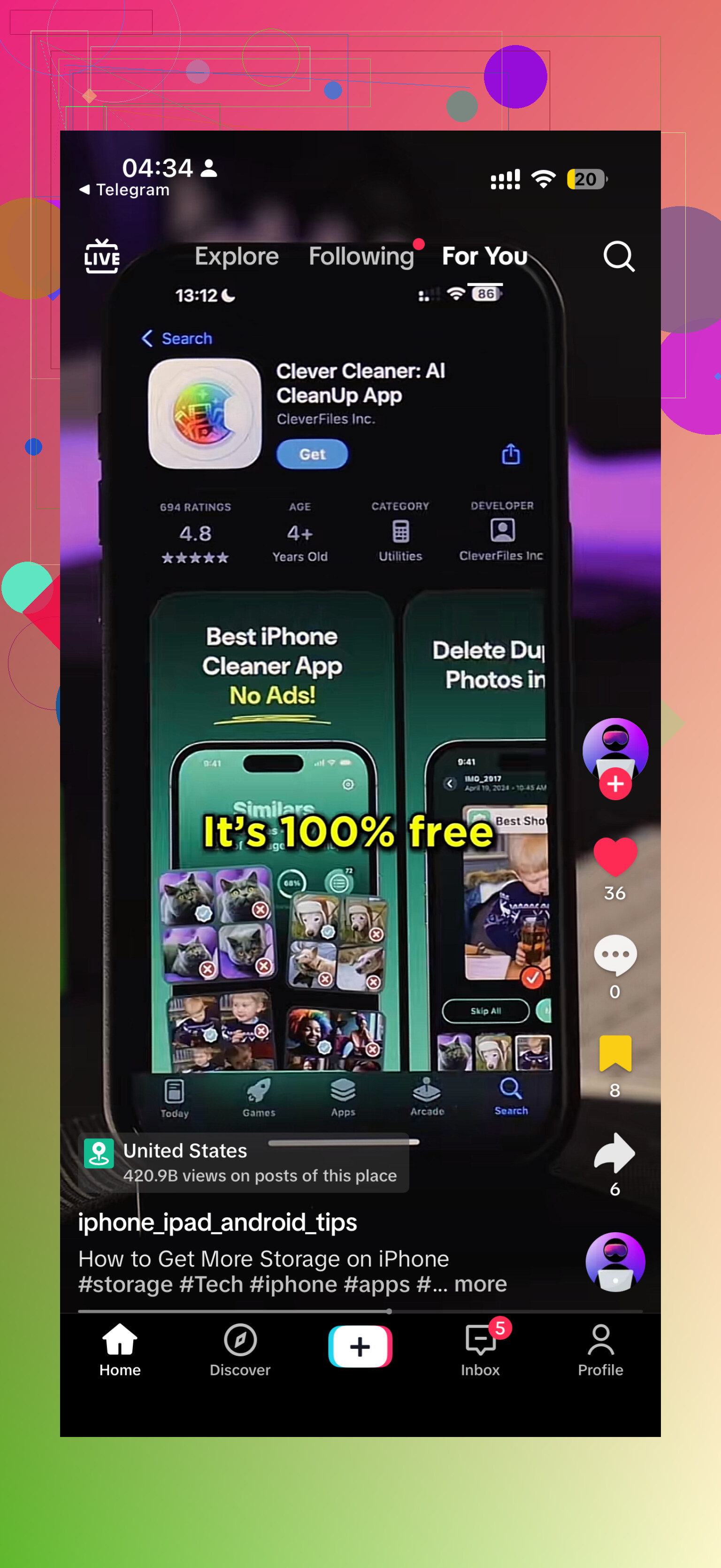
If photos are still the main hog, Clever Cleaner is actually useful for spotting duplicate pics, similar shots, and giant videos way faster than doing it manually. Also, this TikTok shows a decent iPhone storage cleanup walkthrough using Clever Cleaner: watch how to free up iPhone storage fast with Clever Cleaner
And one more thing people forget: if you’re on the beta profile or a beta build, remove that profile first. Beta updates can be extra janky with storage checks. Sometimes the cleanest fix is update from a computer and skip OTA entirely, becuase OTA is weirdly fragile.
I’d skip one suggestion from @ombrasilente: signing out of iCloud just to refresh storage is overkill unless you already suspect sync is broken. Too much hassle for too little payoff.
What I’d check instead:
- Date and time set to automatic. Sounds unrelated, but failed update verification can loop and leave junk behind.
- VPN off / Low Power Mode off. Both can interfere with download, verification, or background prep.
- Delete old IPSW-style backups in Finder/iTunes on the computer if you update there. Sometimes people think the phone is the issue when the computer side is messy.
- Force update through Recovery Mode if normal update keeps failing. This often bypasses the stuck prep stage, but back up first.
- Check for MDM/work profile restrictions under VPN & Device Management. Managed phones can block or delay updates.
- Reset All Settings before full erase. Not a magic fix, but safer than wiping the phone and can clear weird update config issues.
On Clever Cleaner:
Pros: fast at spotting big videos, duplicate photos, similar shots. Easier than manual digging.
Cons: photo cleaners can suggest stuff you may want to keep, so you still need to review before deleting.
So yeah, @byteguru, @ombrasilente, and @mikeappsreviewer covered the main storage stuff. My angle: if space looks “good enough” and it still refuses, it’s often an update process problem, not just a storage problem. Recovery Mode or computer update is usually the cleanest next move.